Products
Quick Start Guide
Your Feedback
Download
CyberData OS Updates
Quick Start Guide/User' s Guide
First-Time Setup
How to Install My NAS
How to Bind and Share My NAS
Account Management
FAQ in Setup
CyberCloud Installation — Common Issues
Storage Pool
Raid & ZFS
4 Storage Spaces
Create Storage Pool
Check the Storage Pool Status
Delete and Recreate Storage Pool
Snapshot Management
Add External Storage
SSD Cache Acceleration
Storage Expanion for device with pre-configured RAID modes
Replace Hard Drive to Expand Storage Capacity
Add Hot Spare Disk
About Hard Drive
Network Settings
Set Static IP Address
Create Link Aggregation
Network Port Settings
Network Transmission Speed
Network Access Management
File Management
File Upload
File Download
File Backup
Share the Files
Manage shared file links
Transfer Methods
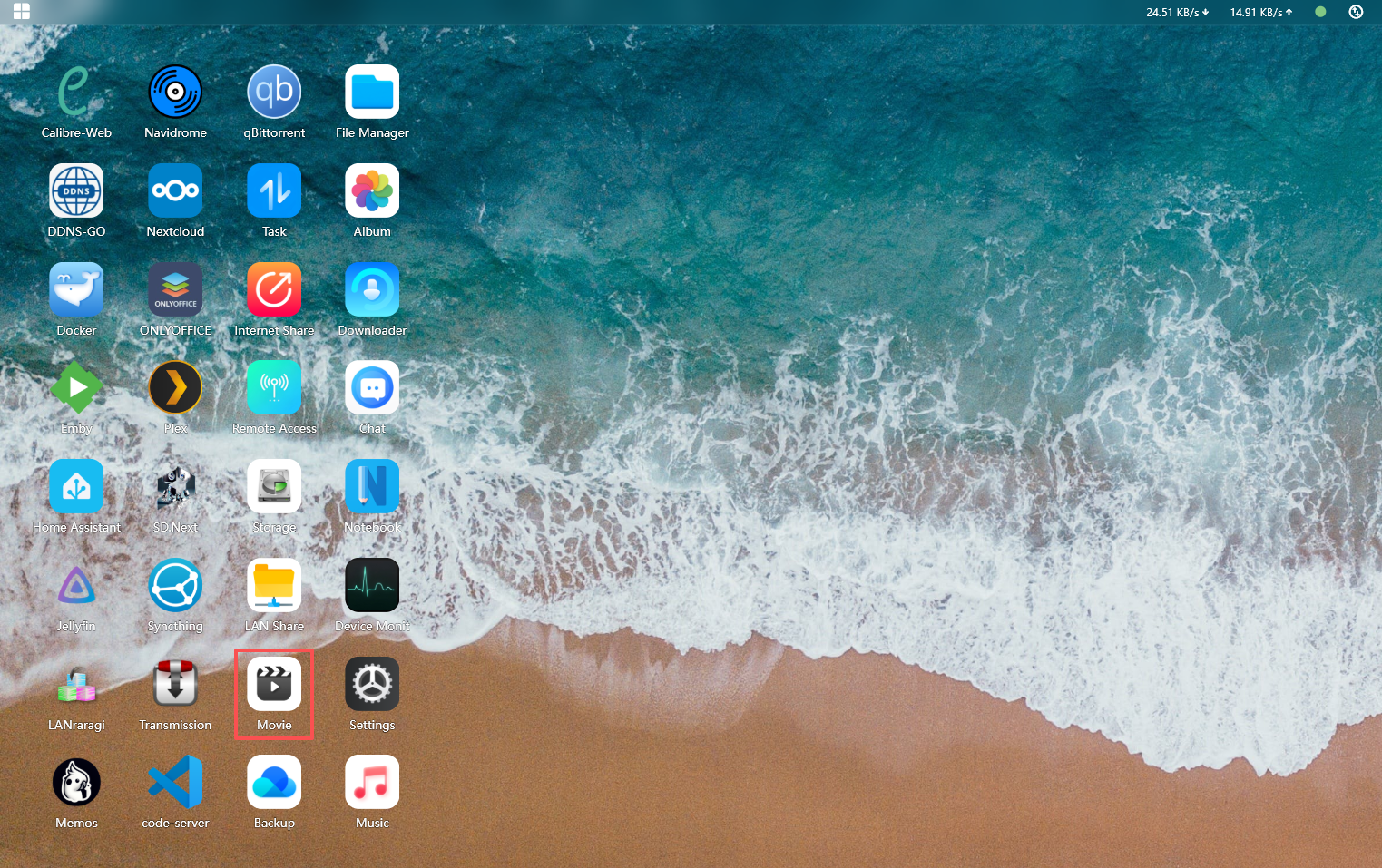
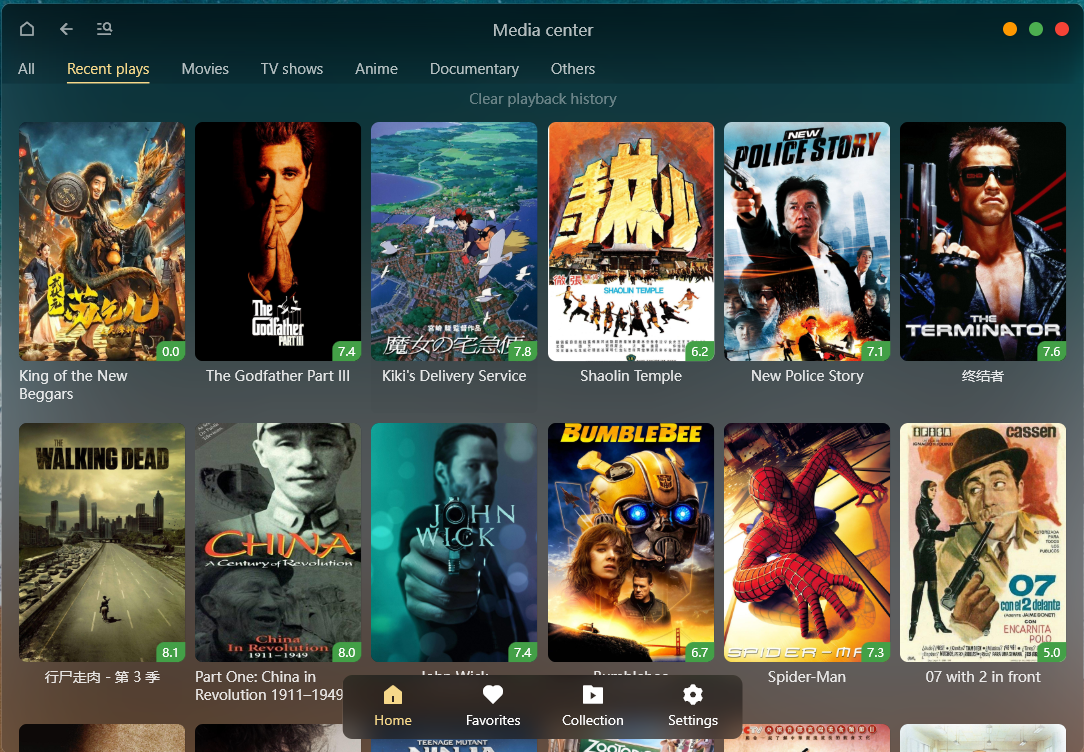
Movie Center
Set Up a Scraping Directory for Your Media Library
How to Mount an External Storage Movie Directory?
How to Add an Offline Transcoding Task?
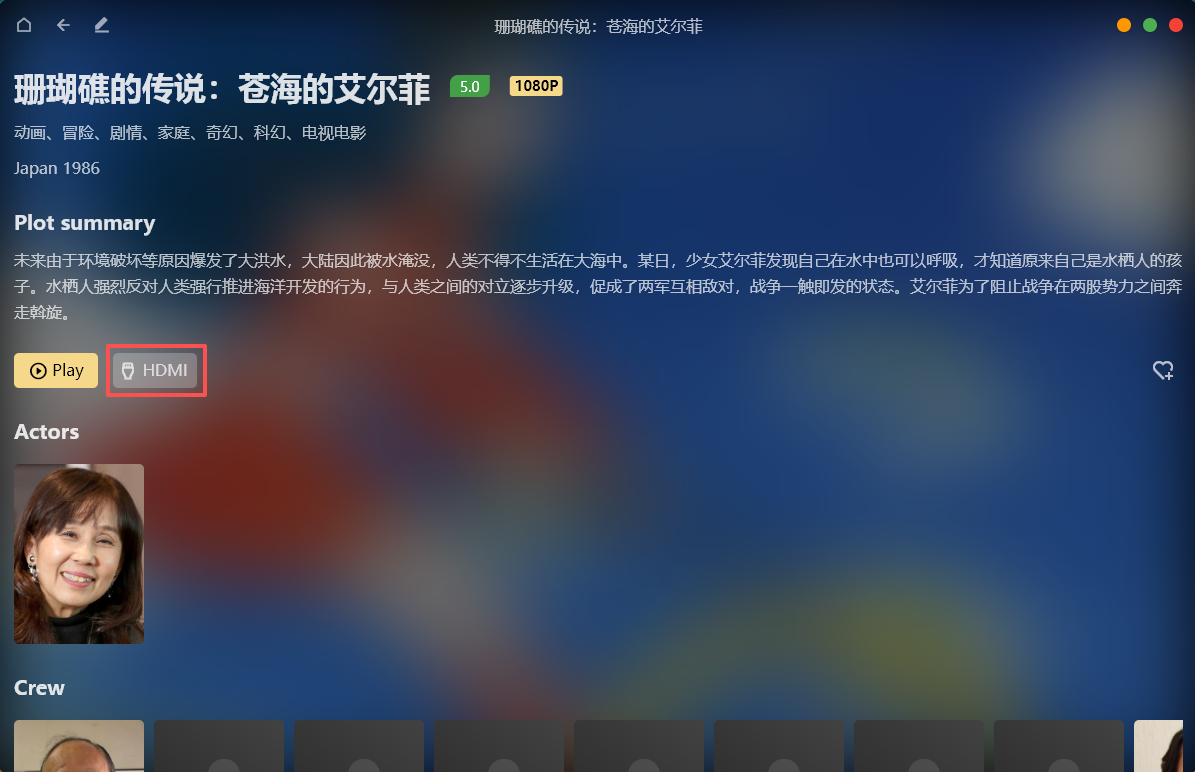
How to Set Up HDMI Output for Video Playback?
How to Set Up DLNA Wireless Screen Mirroring to Play Videos?
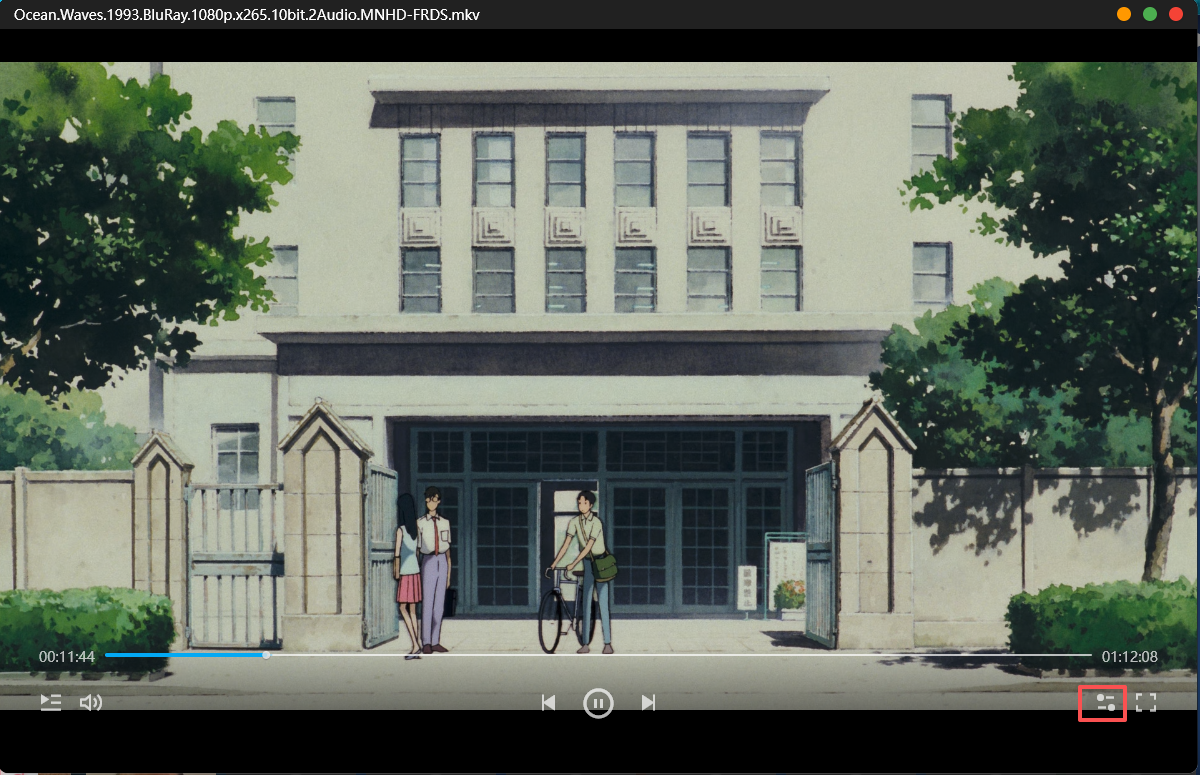
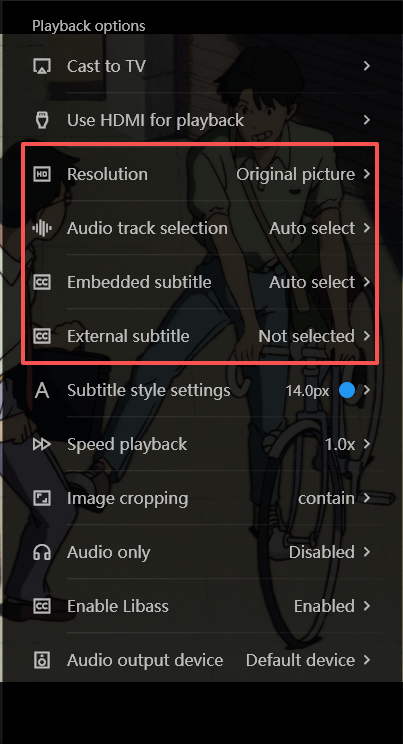
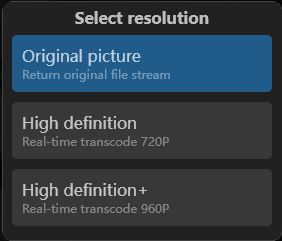
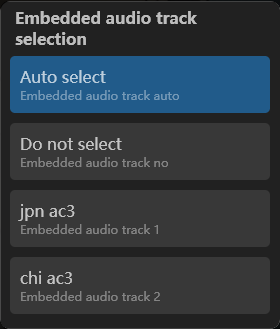
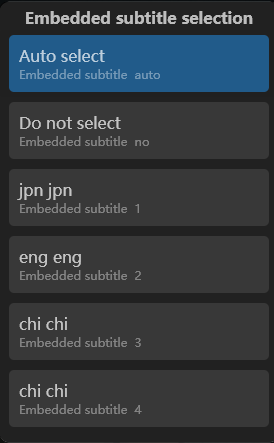
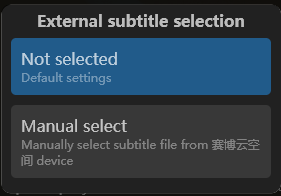
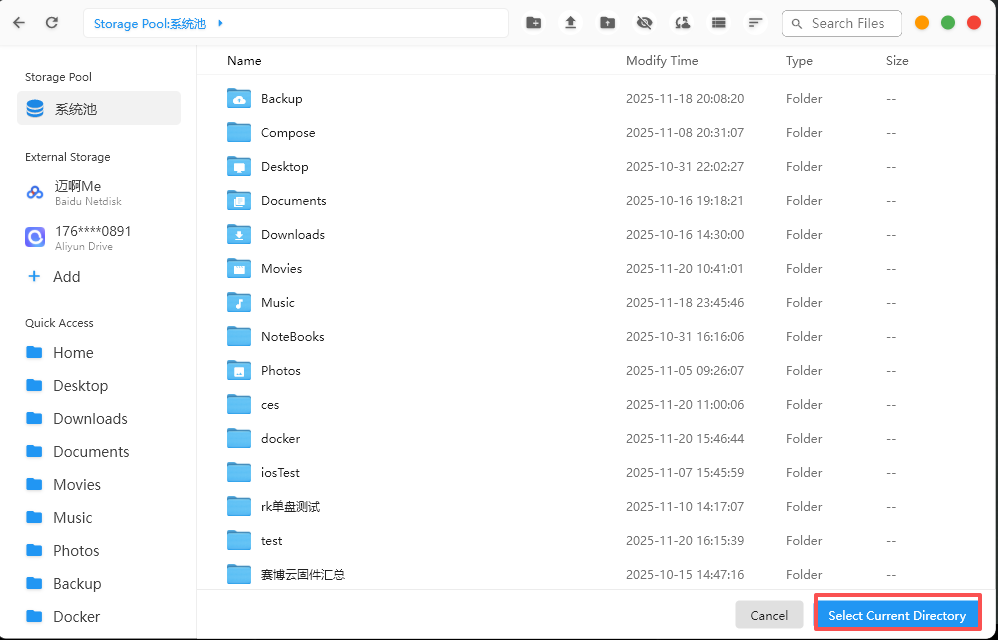
How to set up and switch video resolution, audio tracks, and external subtitles?
How to download movie/TV resources in the background (offline download)?
Music Library
Photo Album
Search by Image
How to Create a Virtual Album?
Which Image Formats Are Supported?
Docker
App Installation
Plex
Jellyfin
Open WebUI
Settings
Change Your Wallpaper
Edit Device/Host Name
Check and Update System
Device Reset/Data Erasure
Explore More
CyberData OS Updates
Remote Assistance
Virtual Machine
Summit Issue Feedback
Download Offline
Device Migration
About Hardware
How to set up and switch video resolution, audio tracks, and external subtitles?
Content