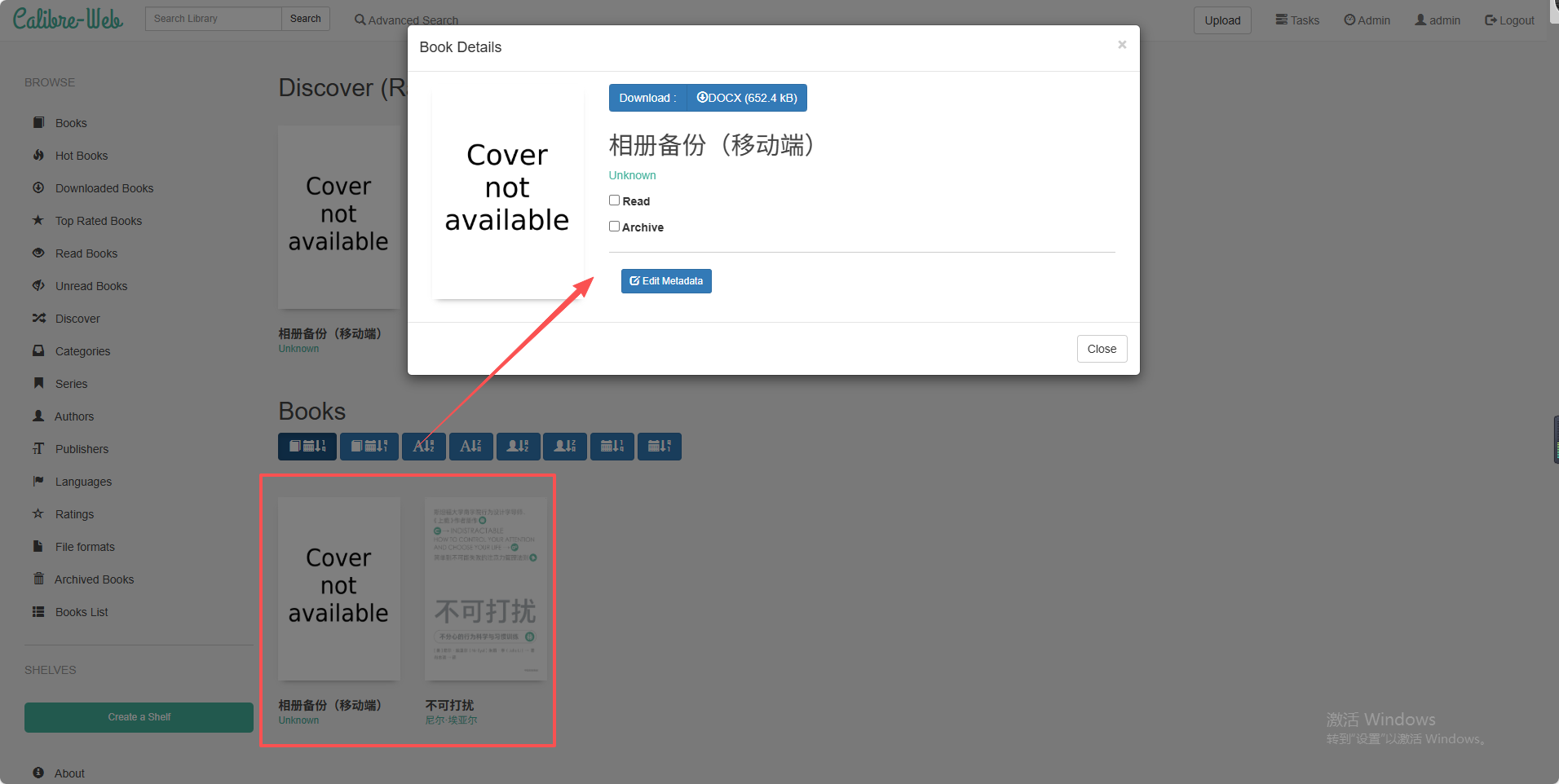


Calibre-Web is a web application for browsing, reading, and downloading eBooks stored in a Calibre database. Users can easily manage and read their eBook library through a browser without the need to install a client.
Username: admin
Password: admin123
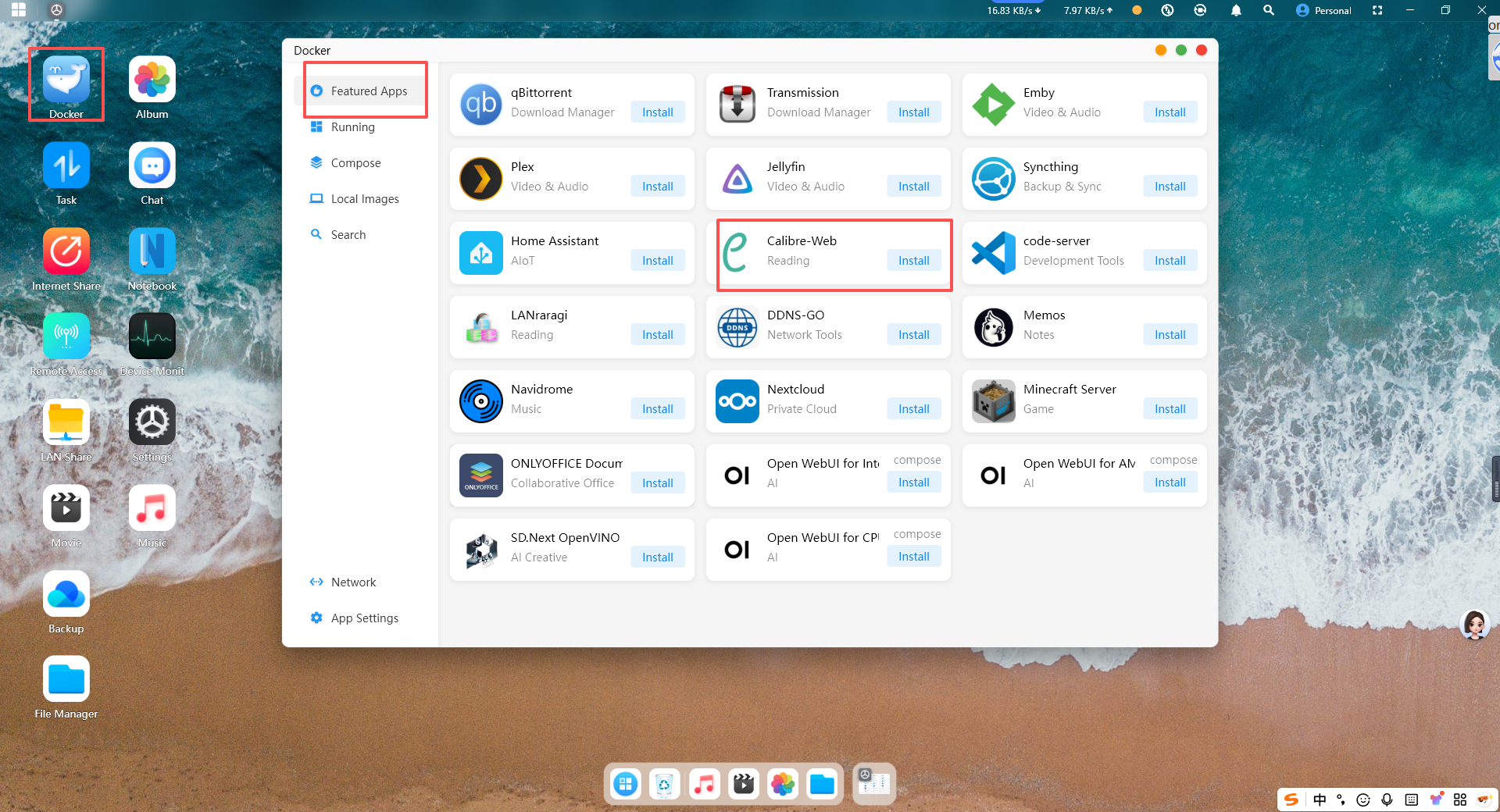
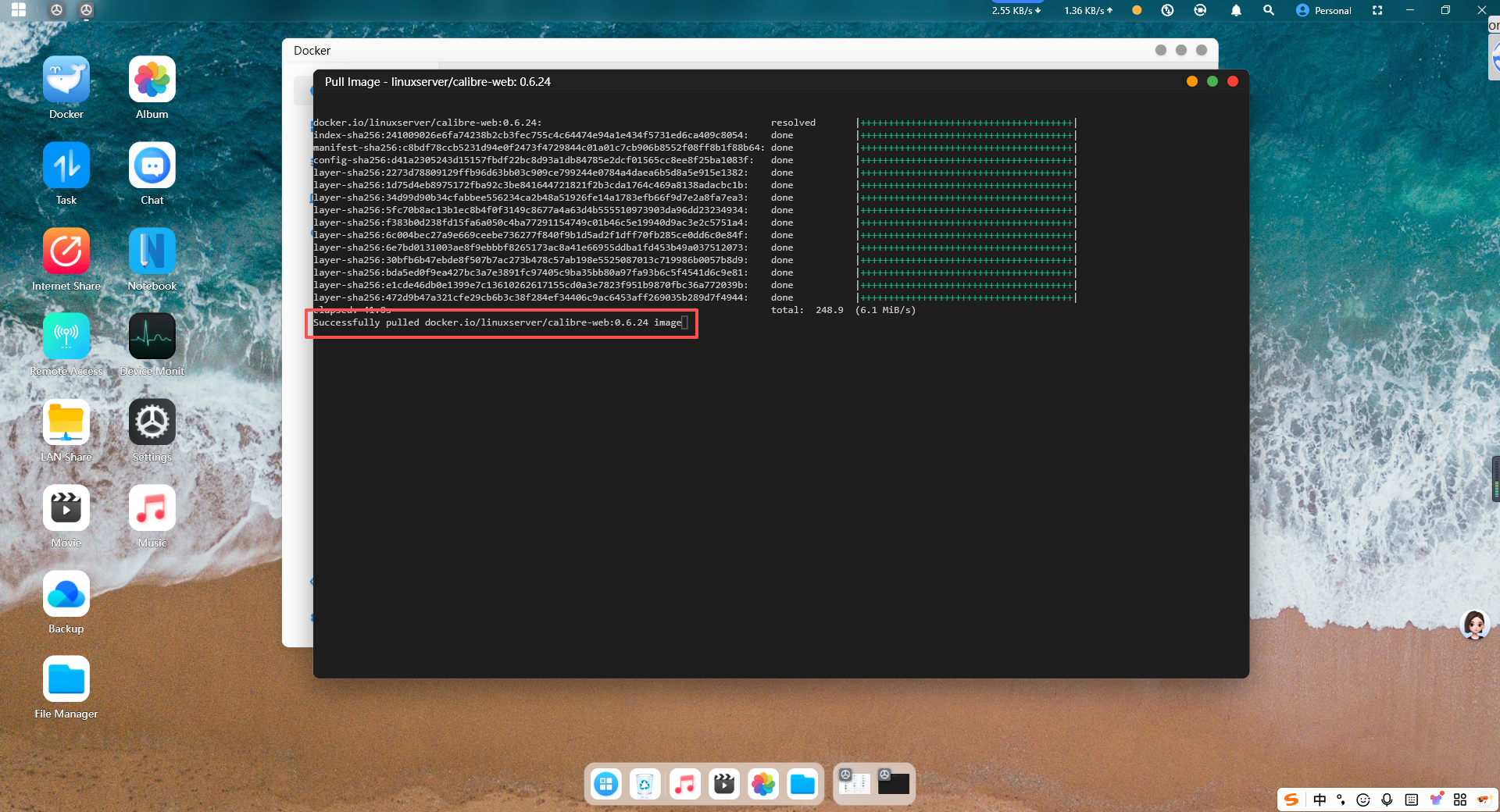
Open the Cyber Cloud software, click the Docker application -> Featured Applications -> Calibre-Web, and click "Install" to download the image. After the image download is complete, "successfully pulled..." will appear on the last line. Then click the "Start" button to launch the container.
Click "Open" and you will be automatically redirected to the web page.
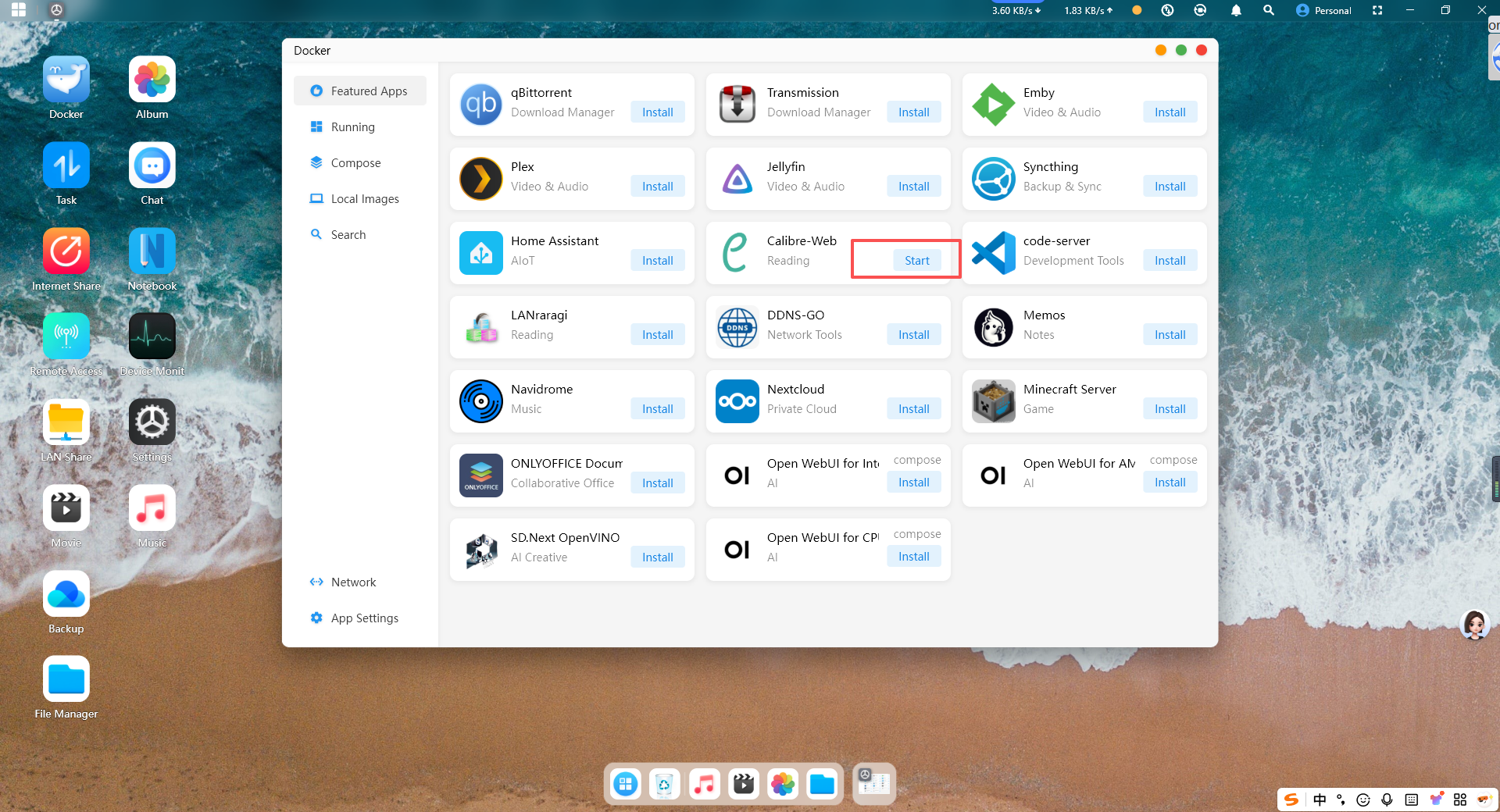
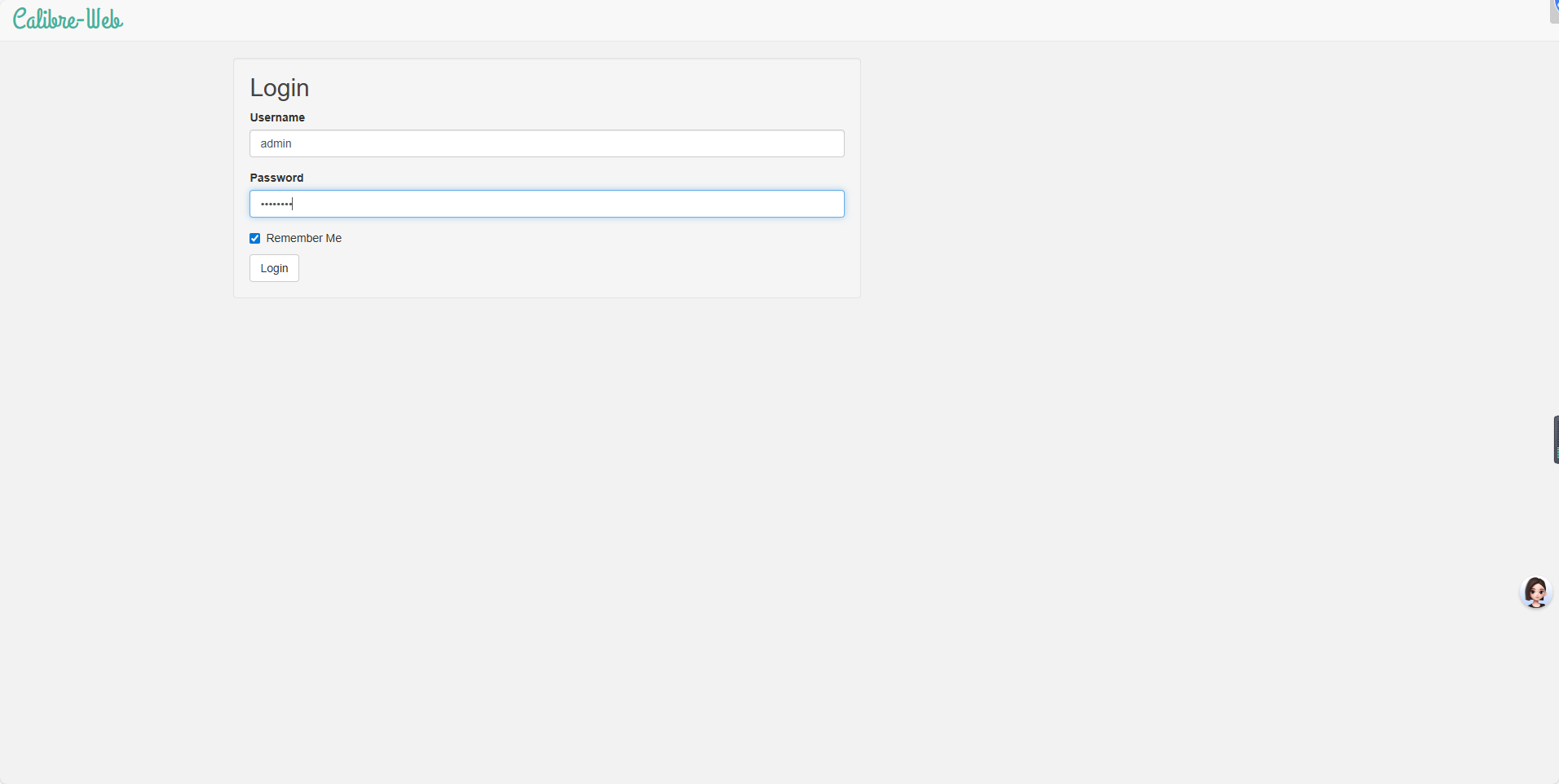
Enter the default username and password, then click "Login" to access the Calibre-Web main page.
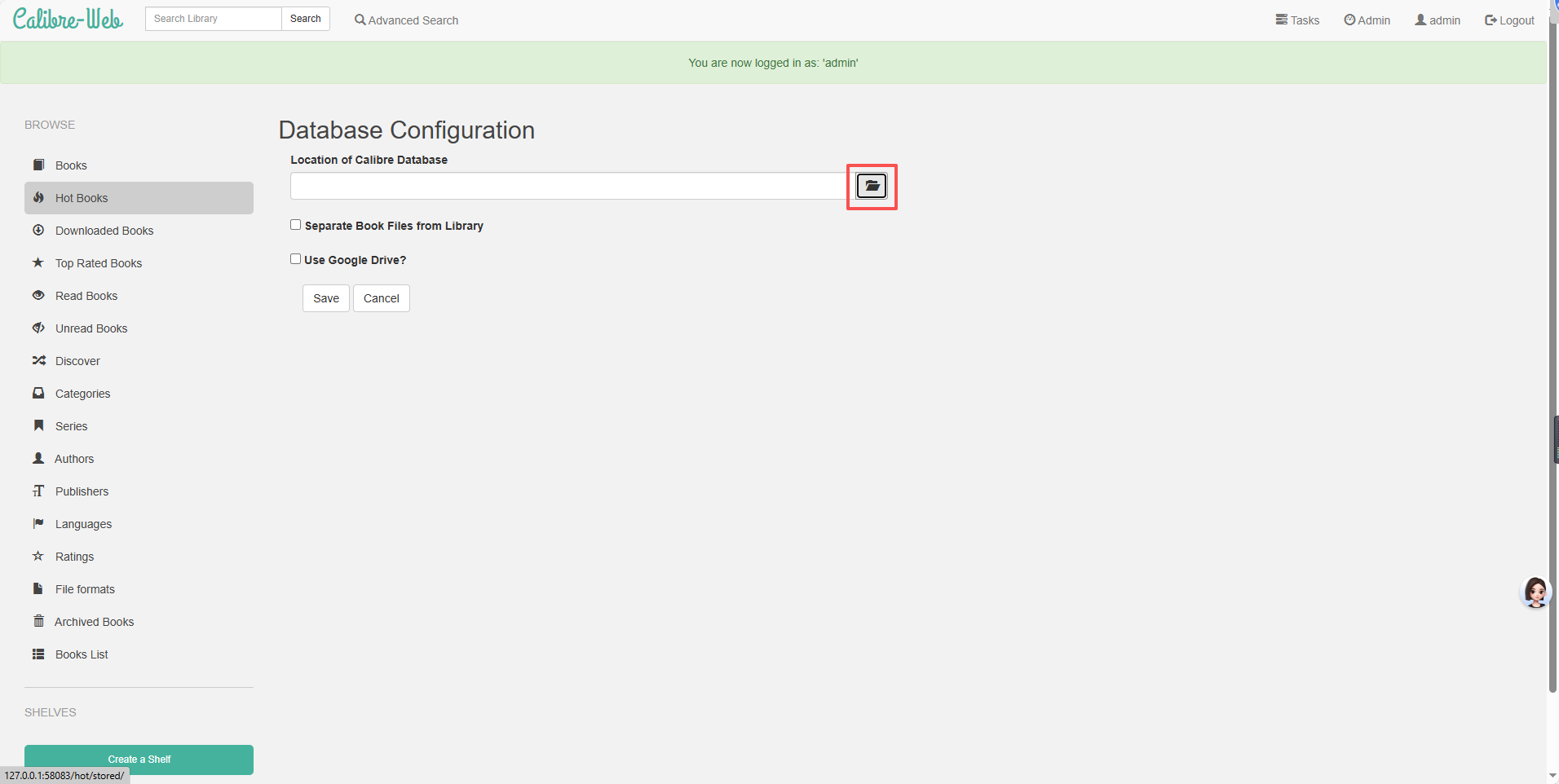
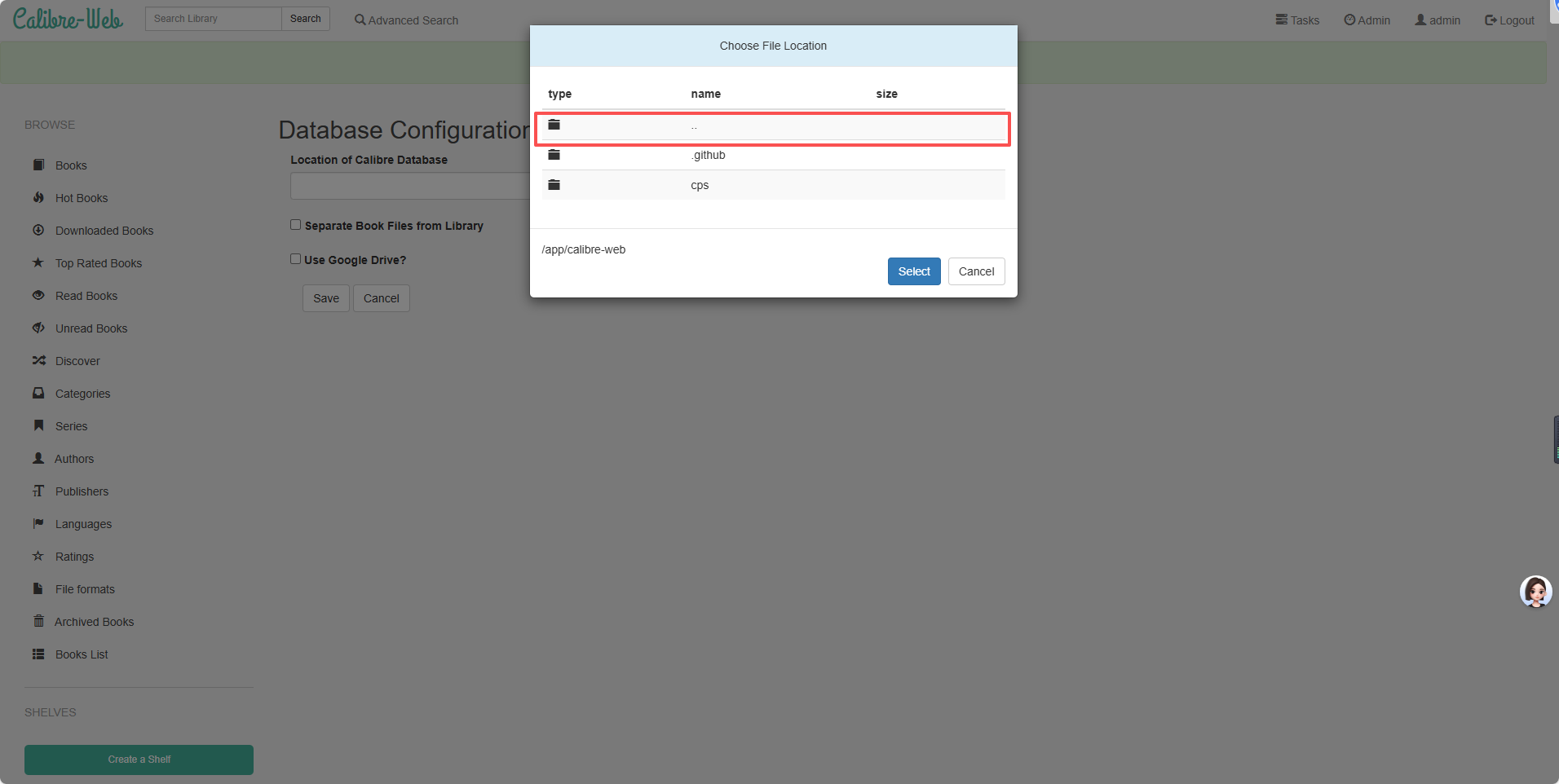
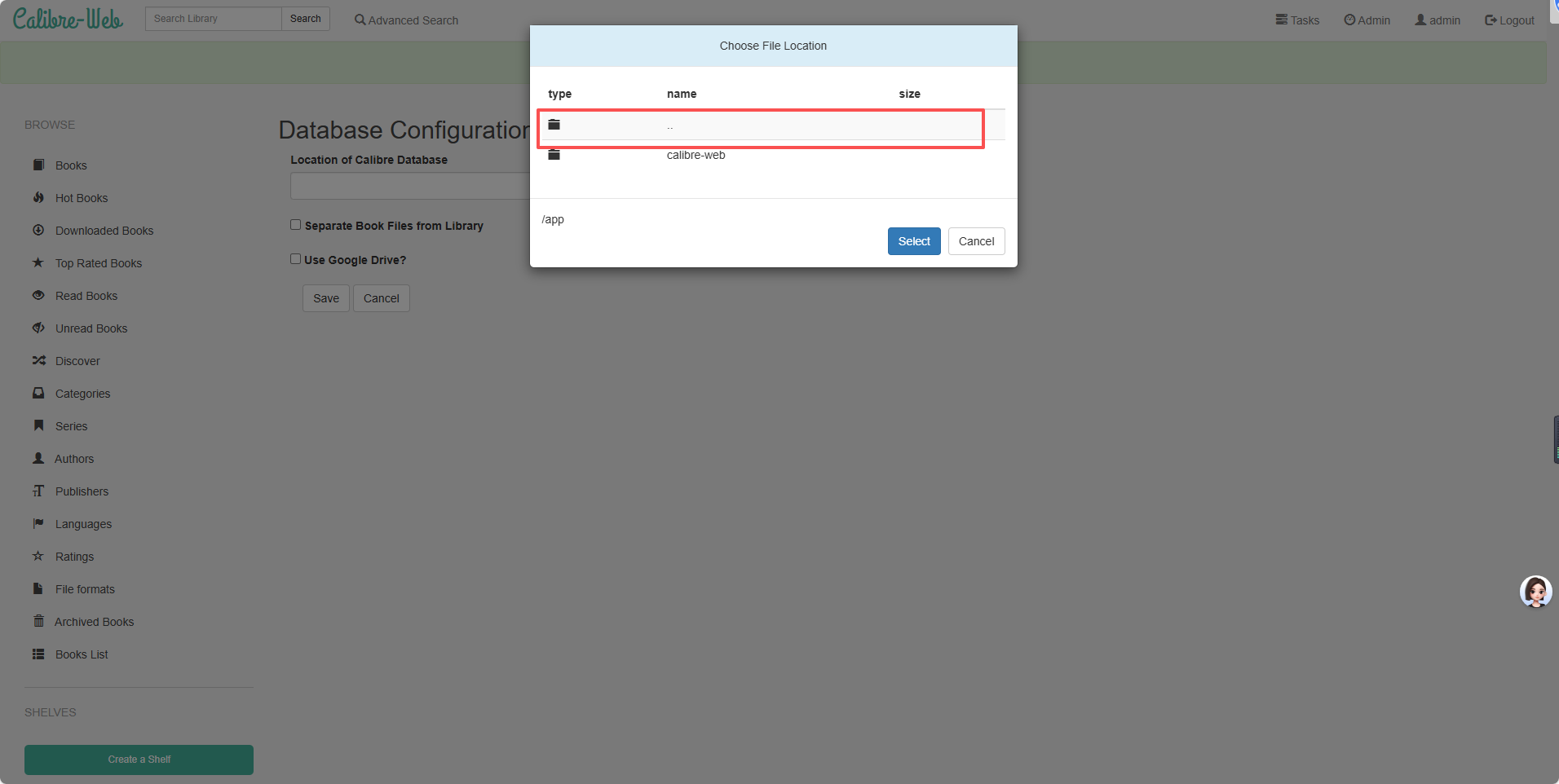
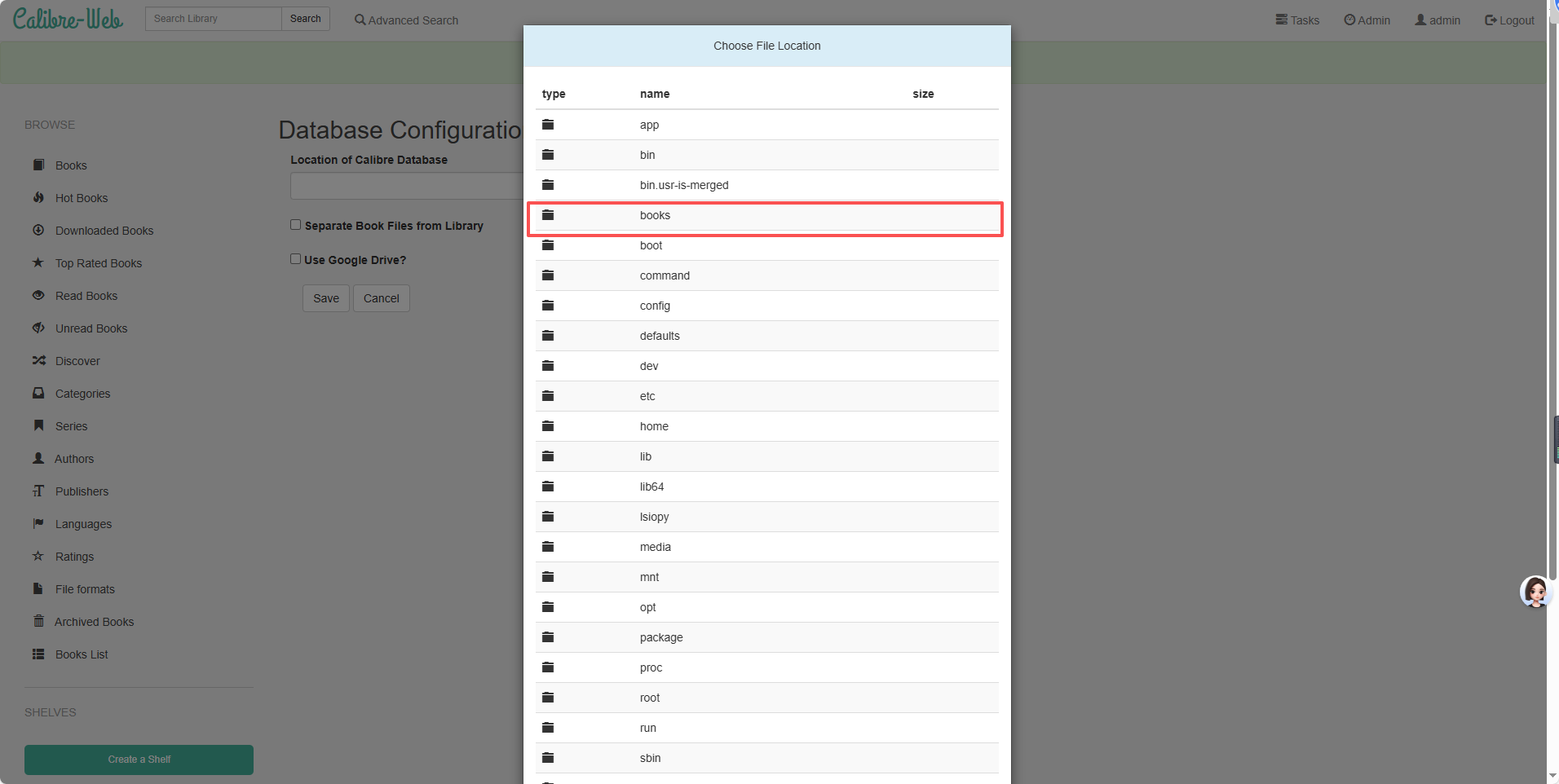
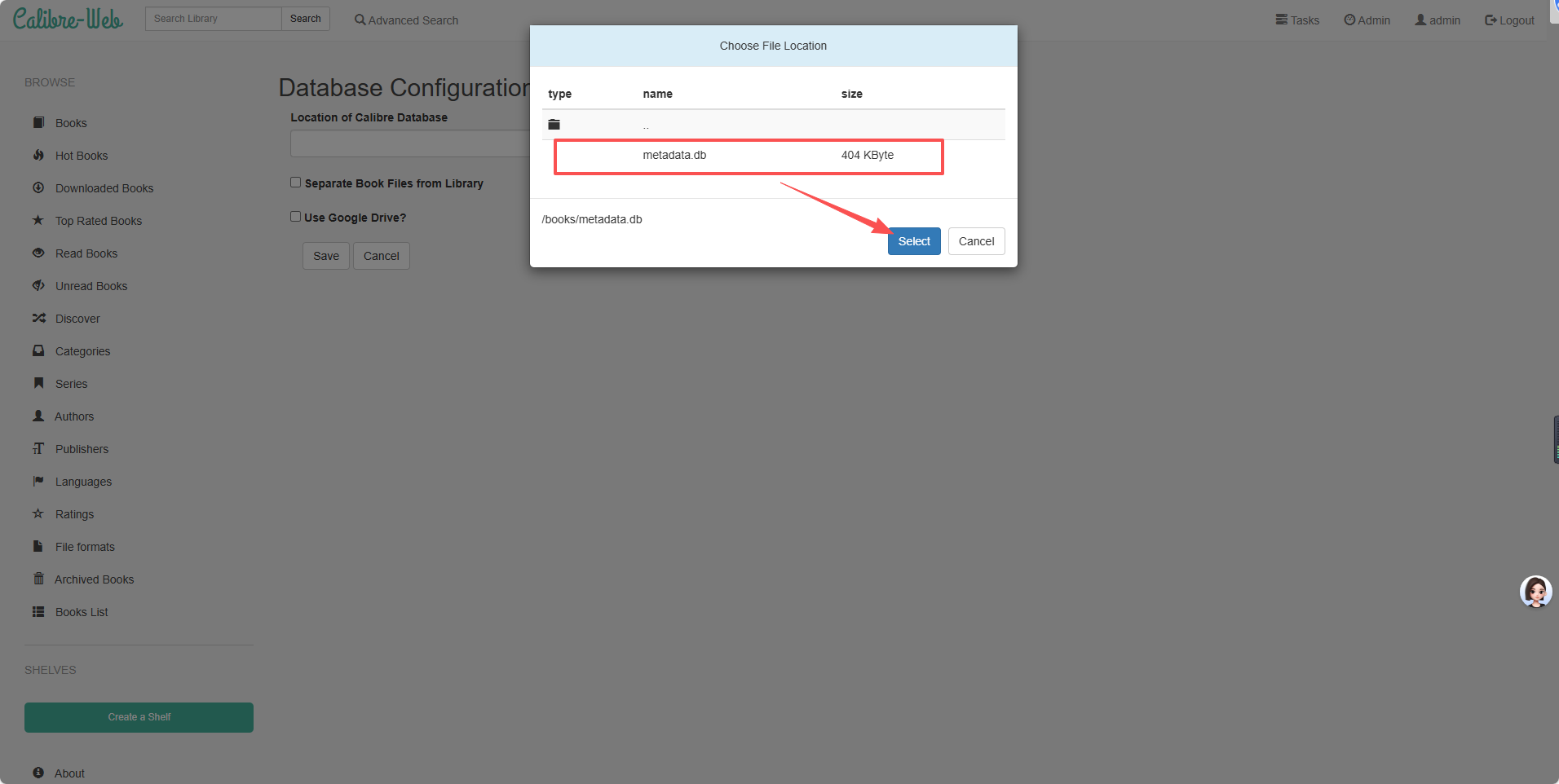
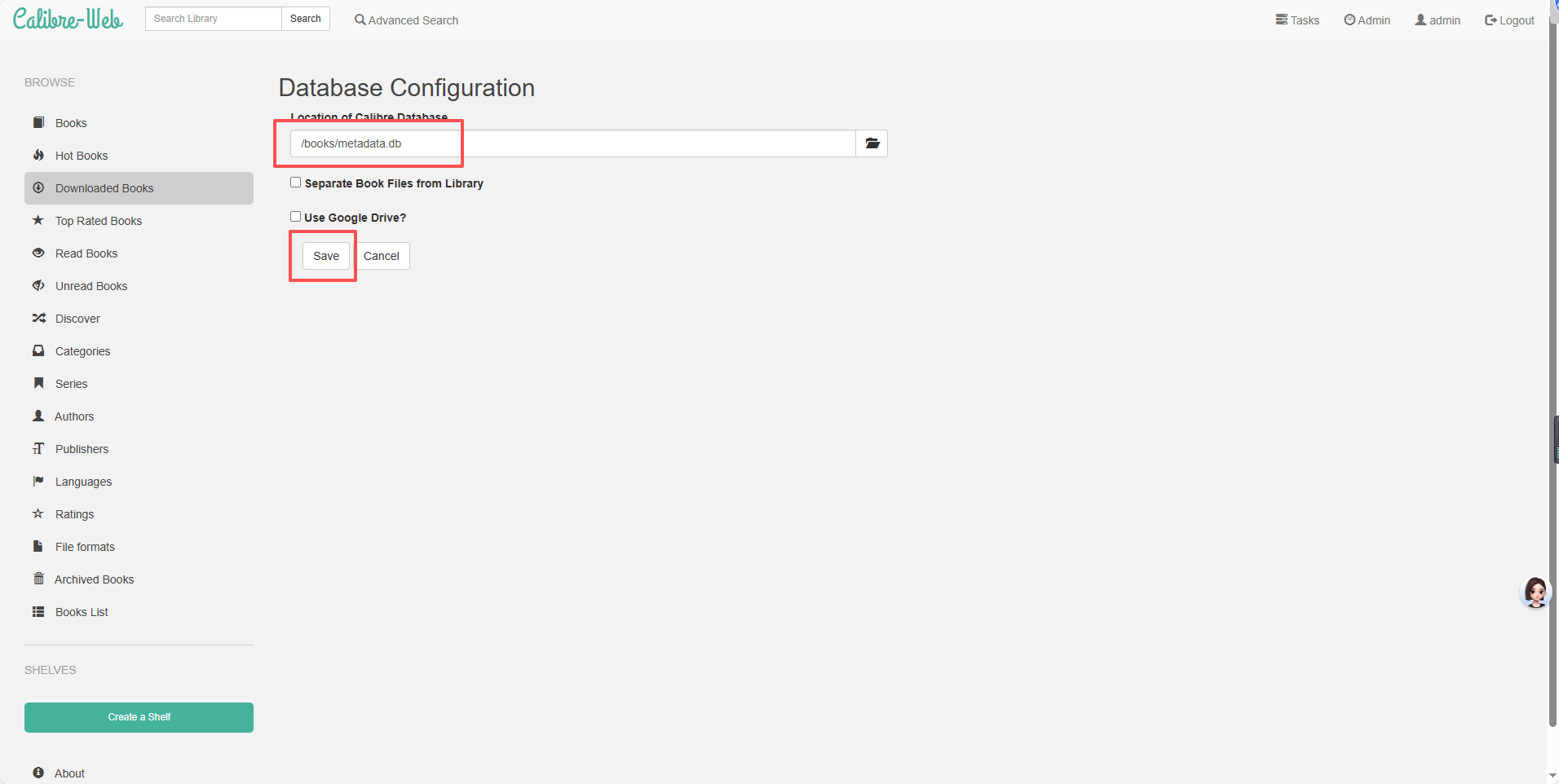
After logging in with the default username and password, you need to add the database path before using the application. Click the folder icon on the right side, and follow the steps as shown in the figure below to make your selection. The final directory should be /books/metadata.db. Click "Save" at the bottom to confirm.
Note: If you do not have a database file, you will need to download a template and place it in the directory. The original database template file can be found at:
https://github.com/janeczku/calibre-web/raw/master/library/metadata.db
Download this file and save it to the corresponding data space at /docker/calibre/books/metadata.db. After that, select the database file /books/metadata.db on the web page, and the application will be ready for normal use.
To modify the default language, this step must be performed after specifying the database location. Click "admin" in the upper-right corner of the page, select Chinese (Simplified, China) under Language, and then click "Save".
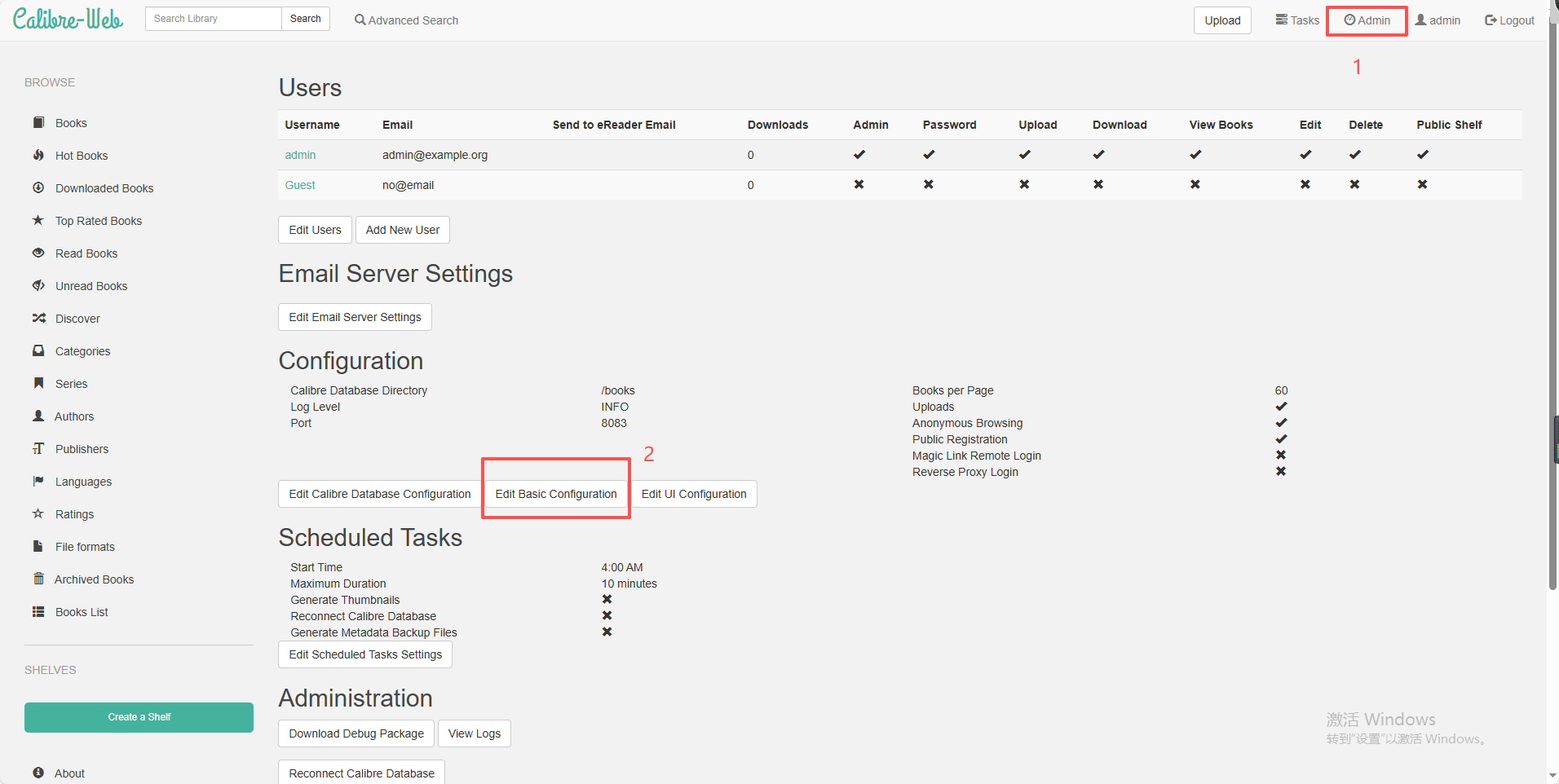
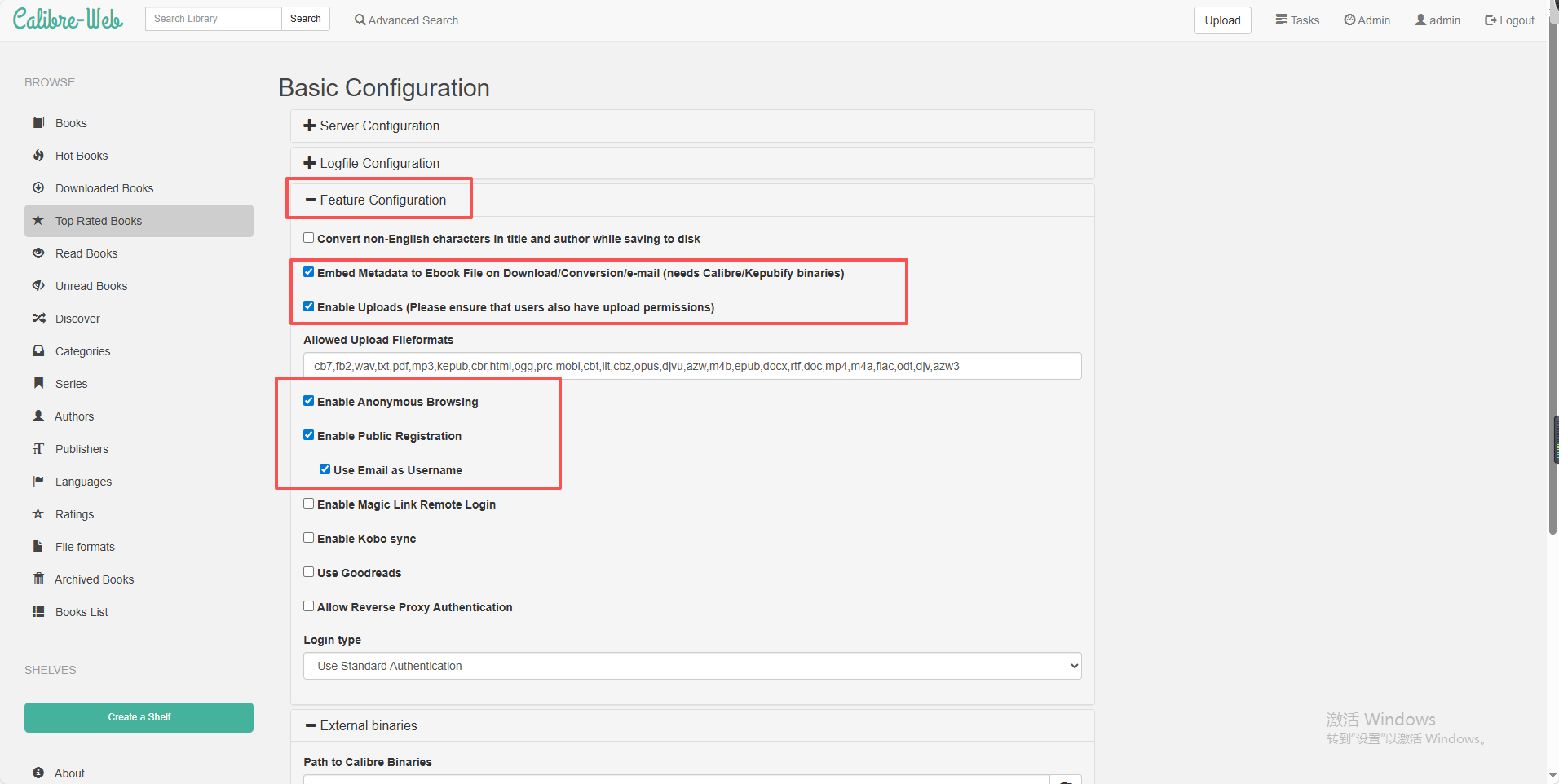
Go to Manage Permissions -> Edit Basic Configuration -> Check Enable Upload, and enable registration. Use email or username. Note: The registration function requires configuring a sending email.
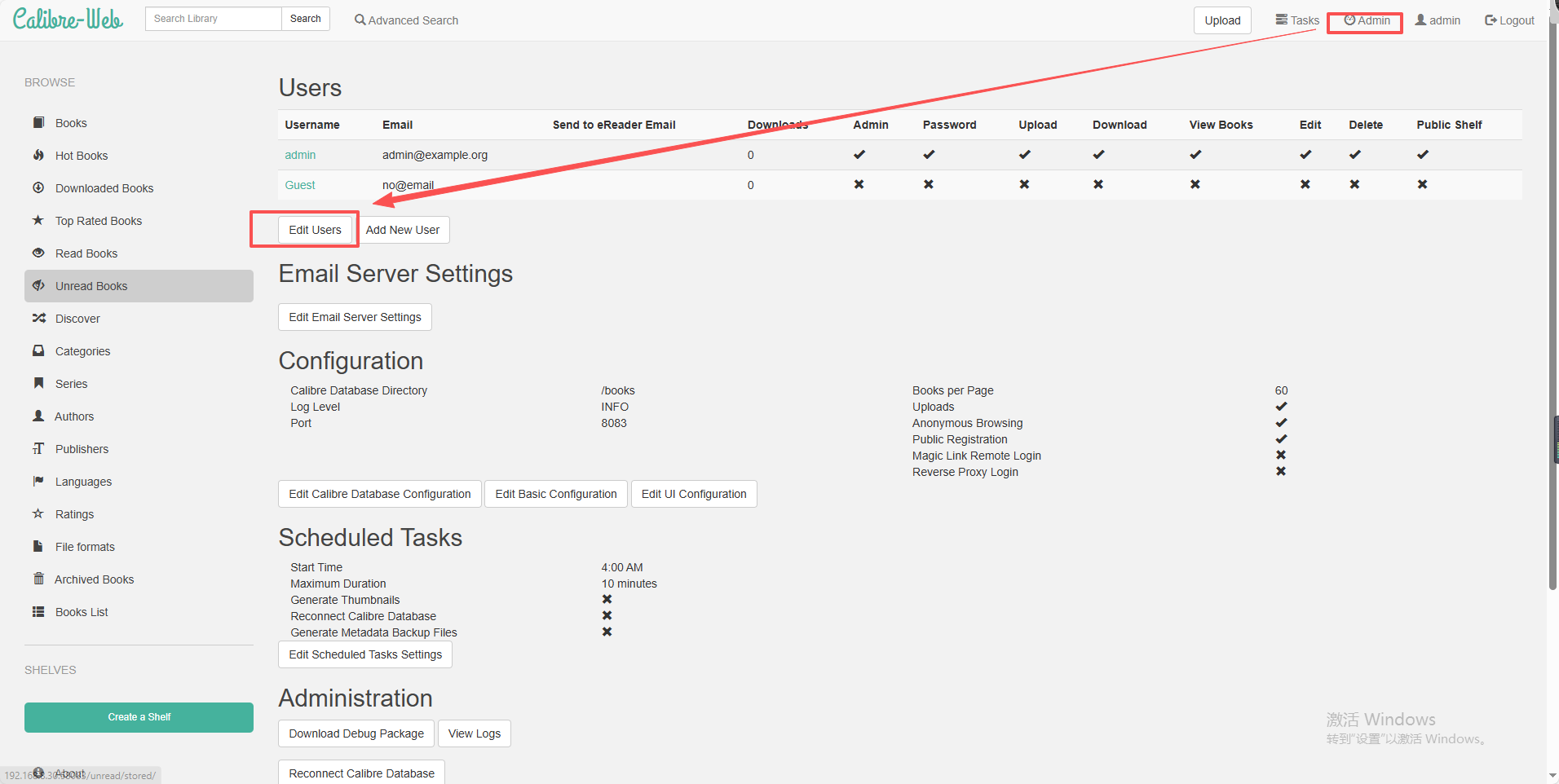
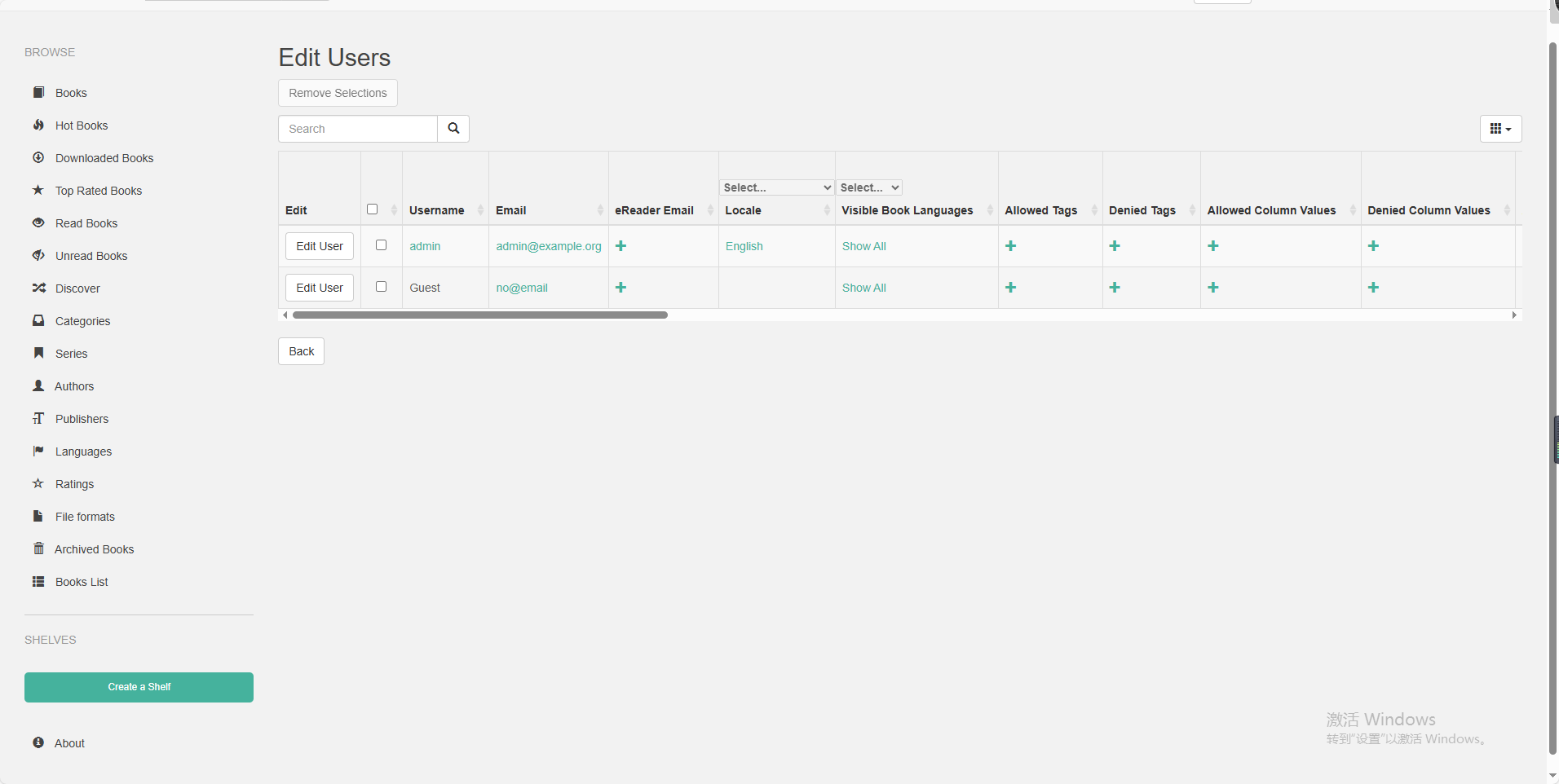
Go to Manage Users -> Check Allow Viewing Books.
After the configuration is complete, the "Upload Books" icon will appear in the upper-left corner.
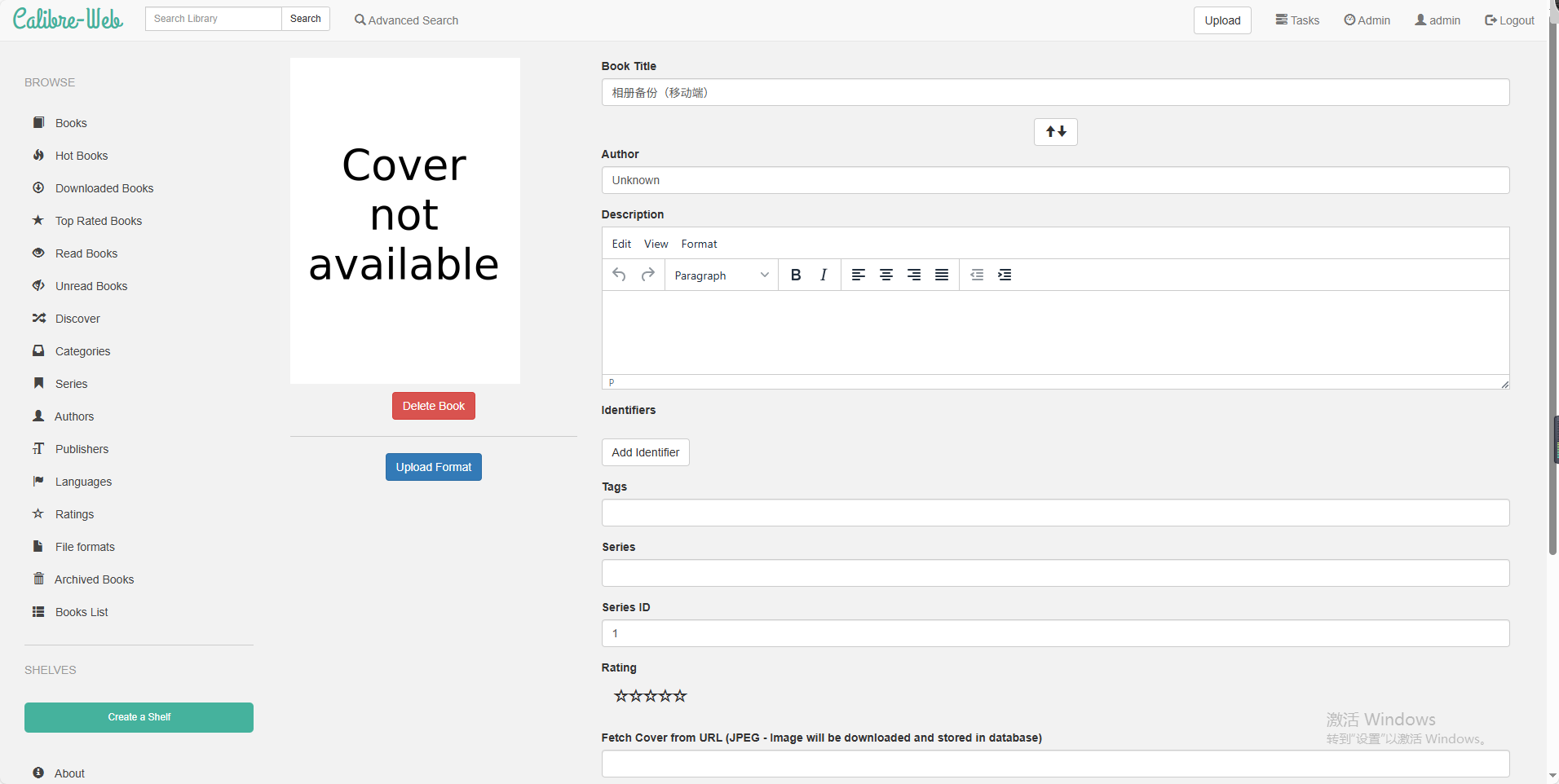
After a successful upload, go to "Books", click on the book you wish to read, and you can choose to read online or download the book.