

code-server is a powerful open-source tool that allows users to remotely access and use the functionality of VS Code through a web browser, without the need to install the VS Code application locally.
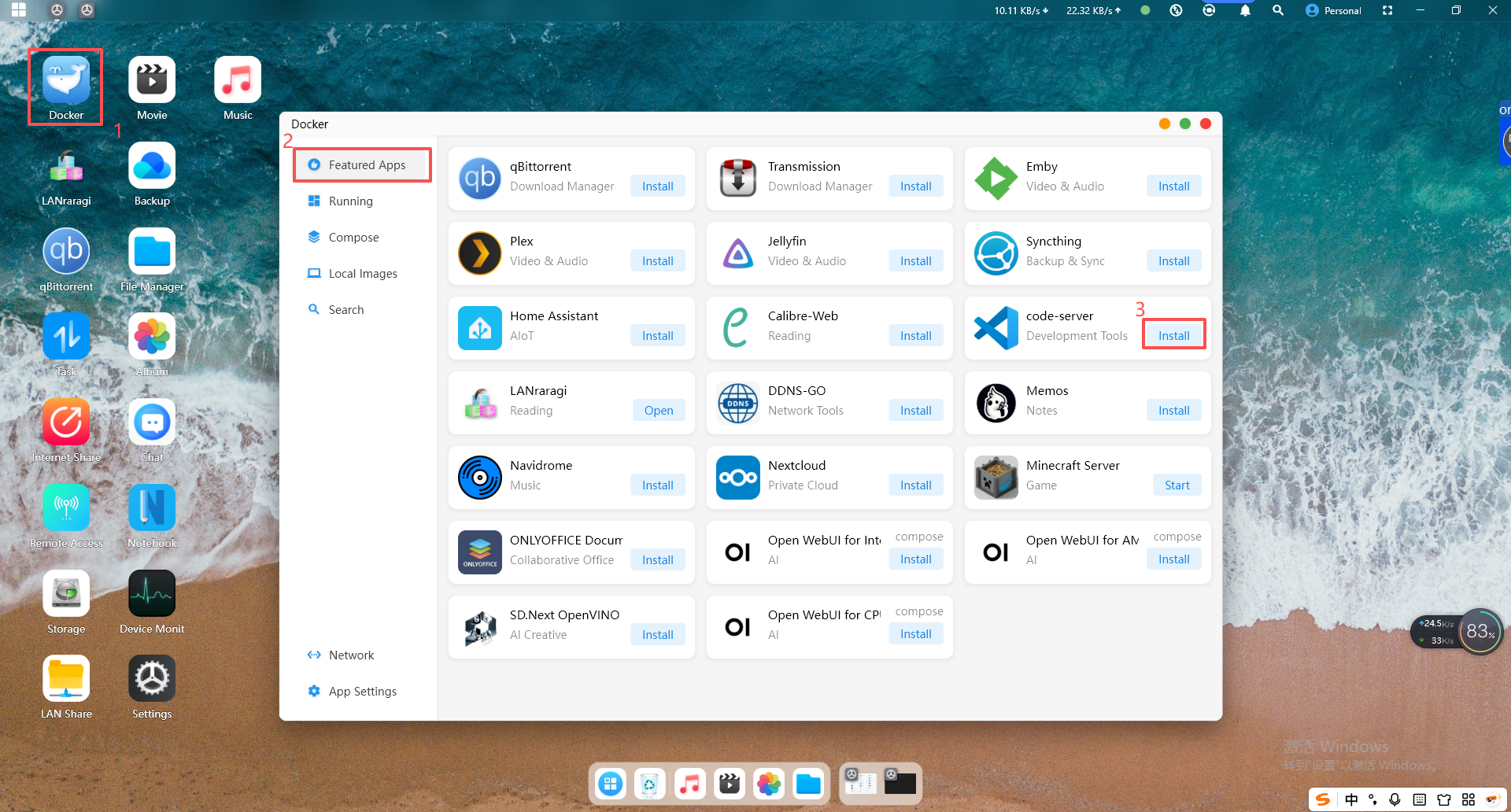
1.Open the Cyber Cloud software, log in, and click Docker to enter the Featured Applications page. Find code-server and click "Install" to pull the image.
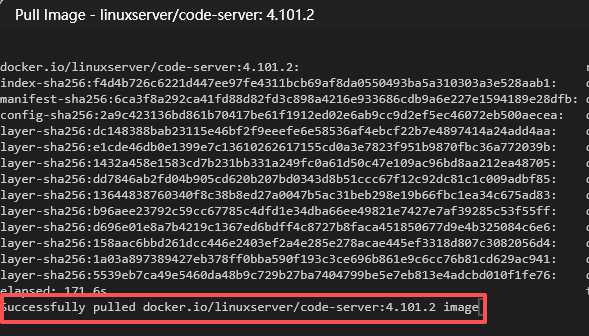
2.After the image download is complete, "successfully pulled..." will appear on the last line.
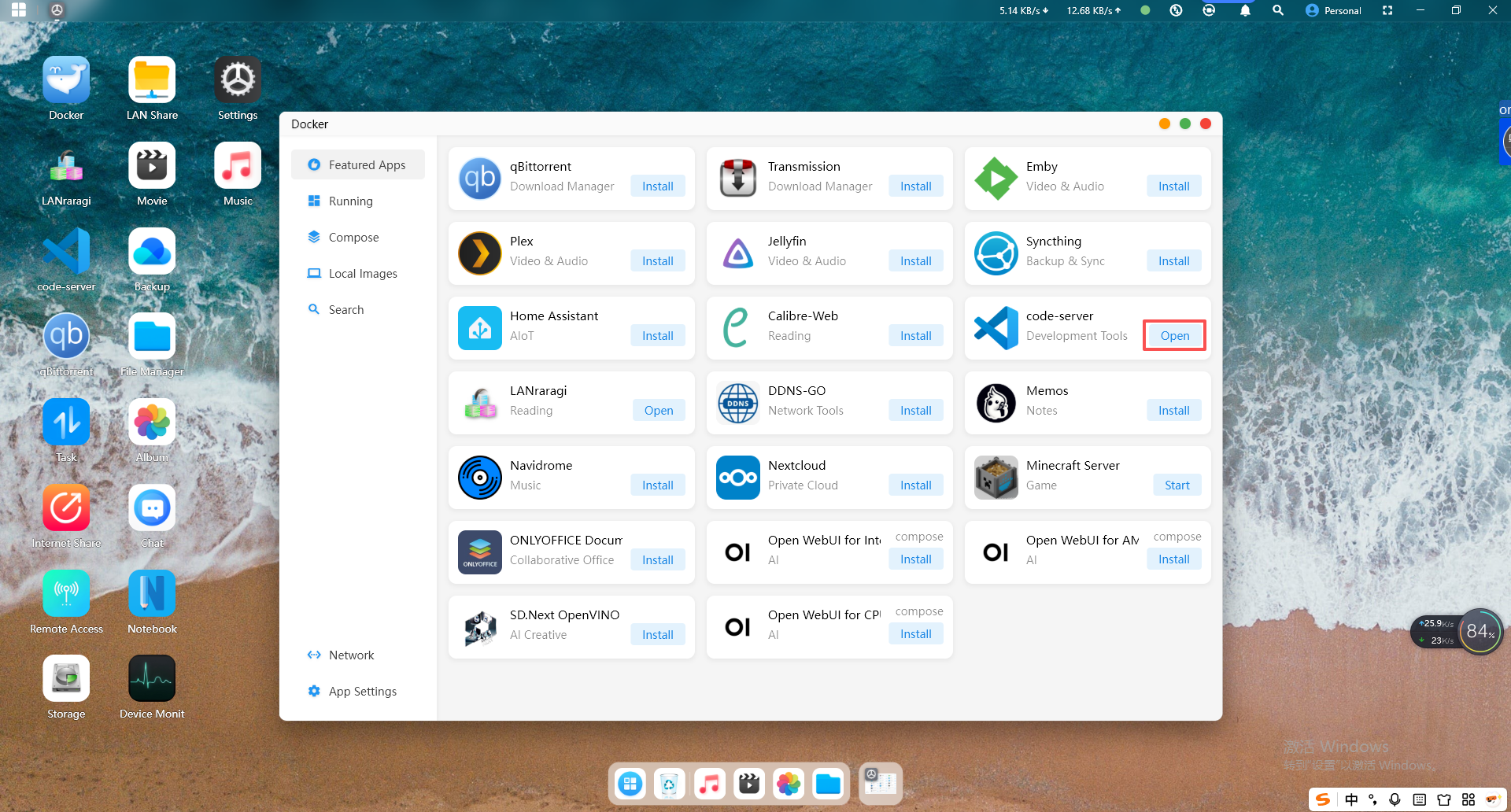
3.Click the "Open" button on the right, and you will be automatically redirected to the web page.
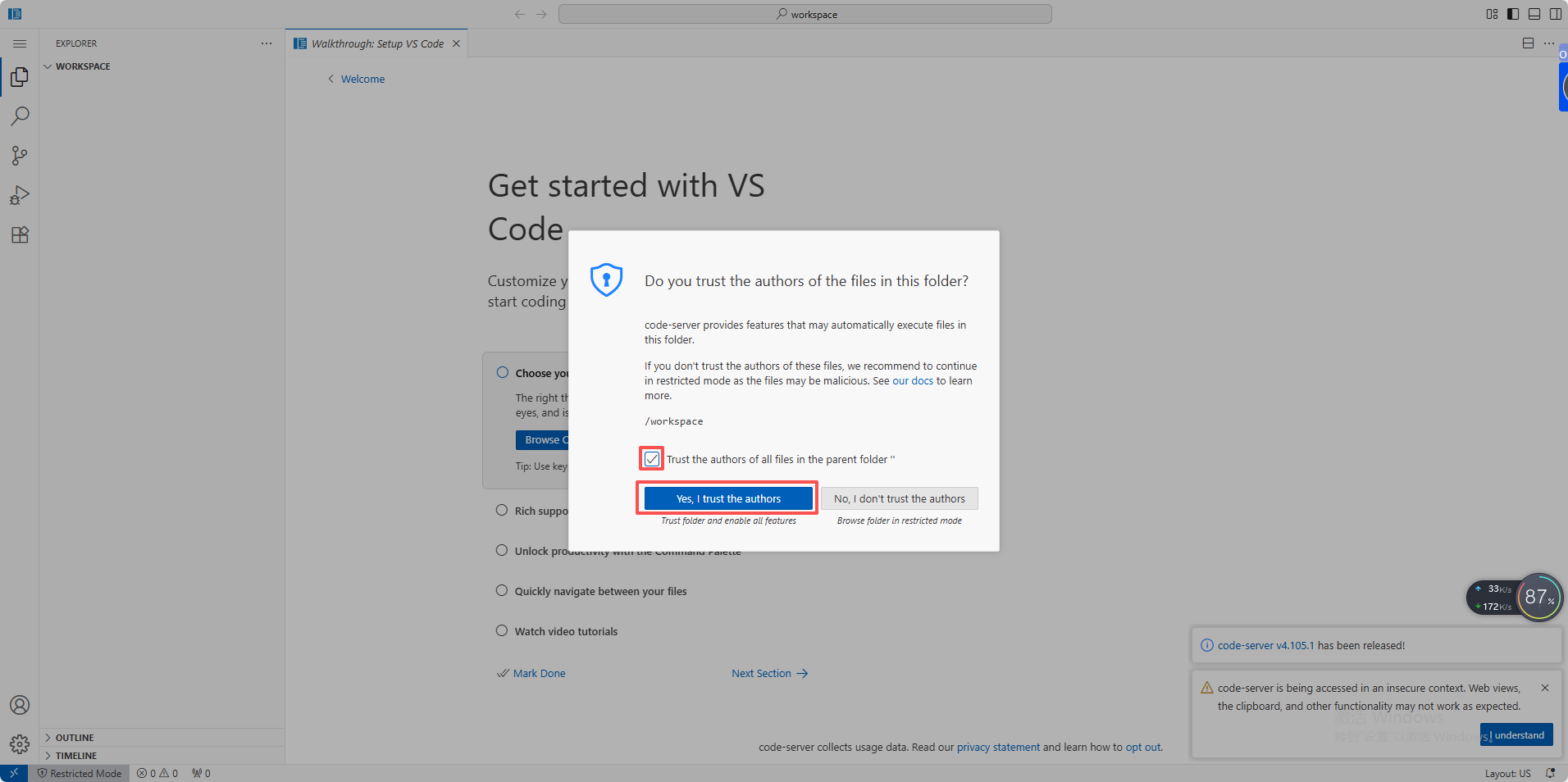
4.In the pop-up prompt box, click "Trust this author".
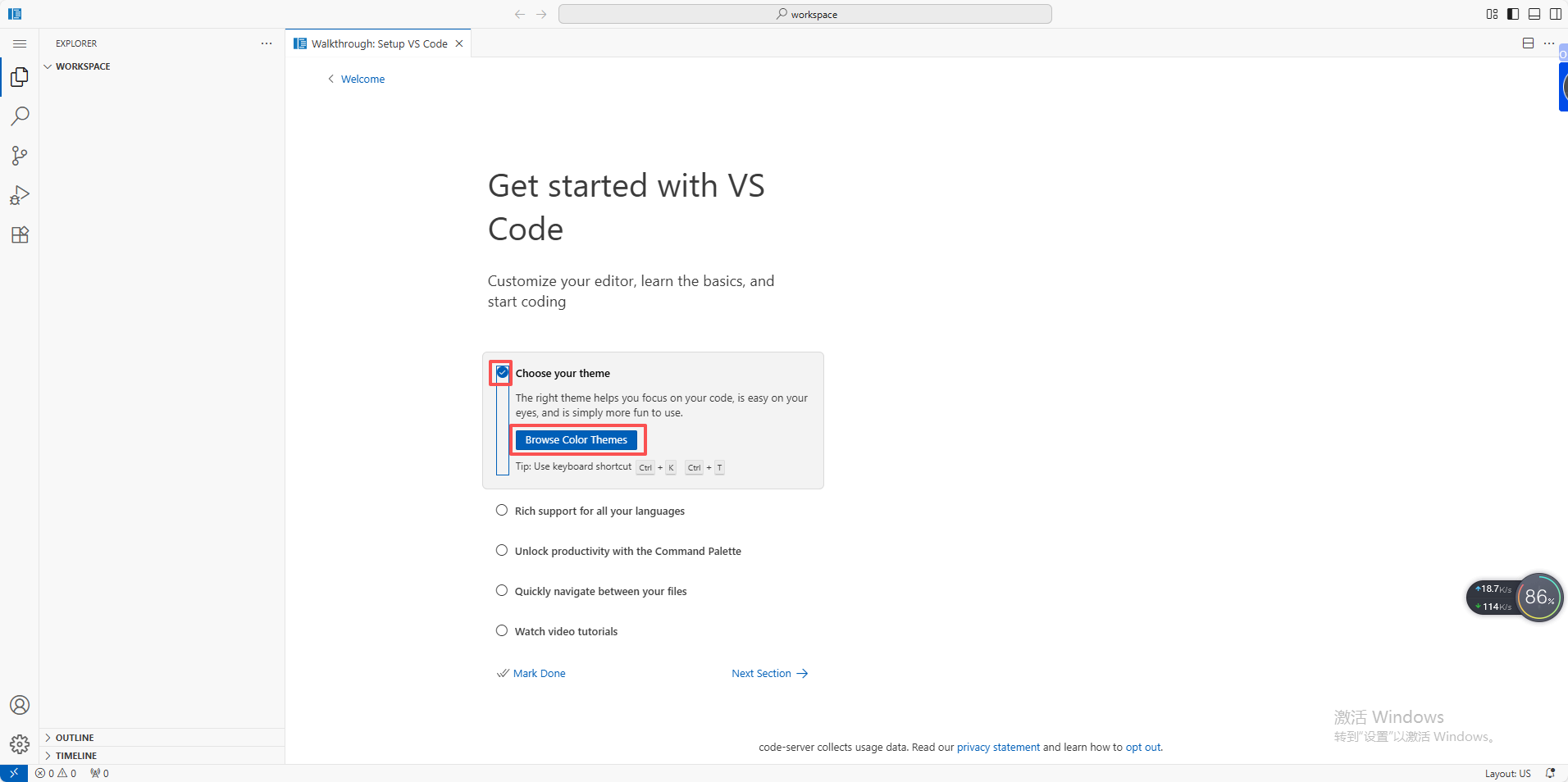
5.Click "Browse Color Themes" to choose your preferred theme.

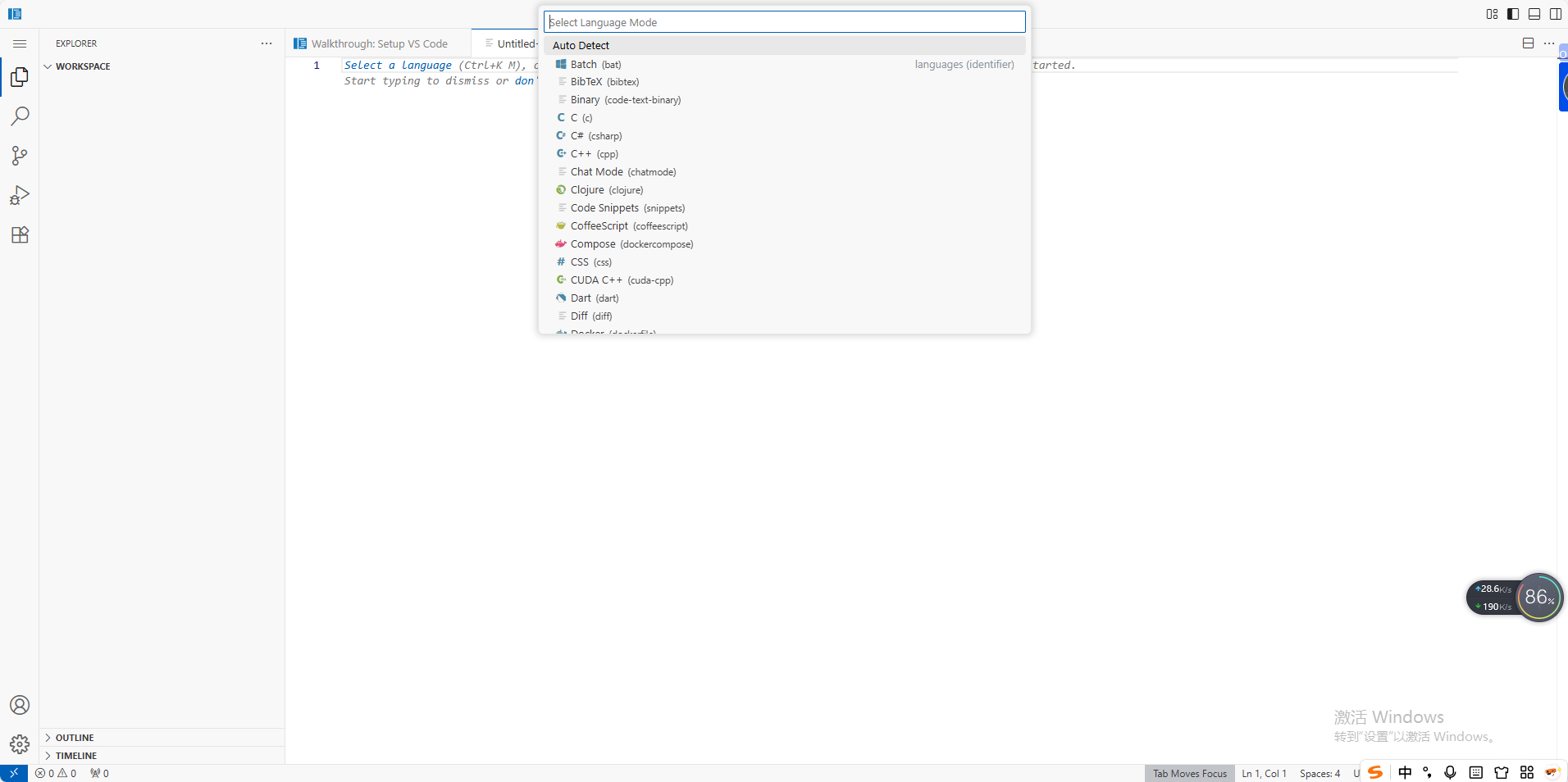
2.Select a language (Ctrl+K M), or fill in a template, or open another editor (Ctrl+Alt+N) to begin. For example, if I want to write C language code, I would find C language. After writing and saving, I can view it in the Cyber Cloud software.
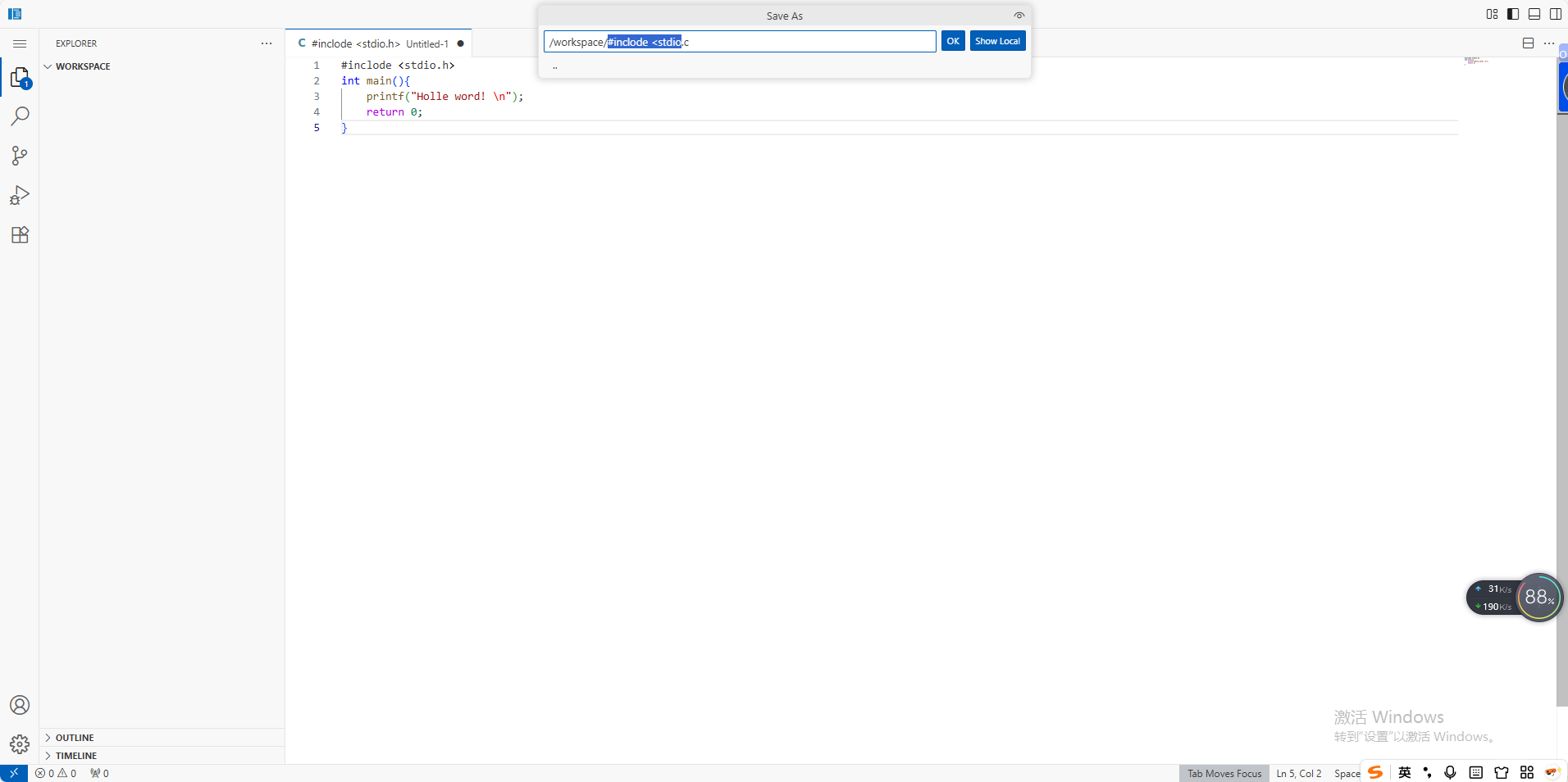
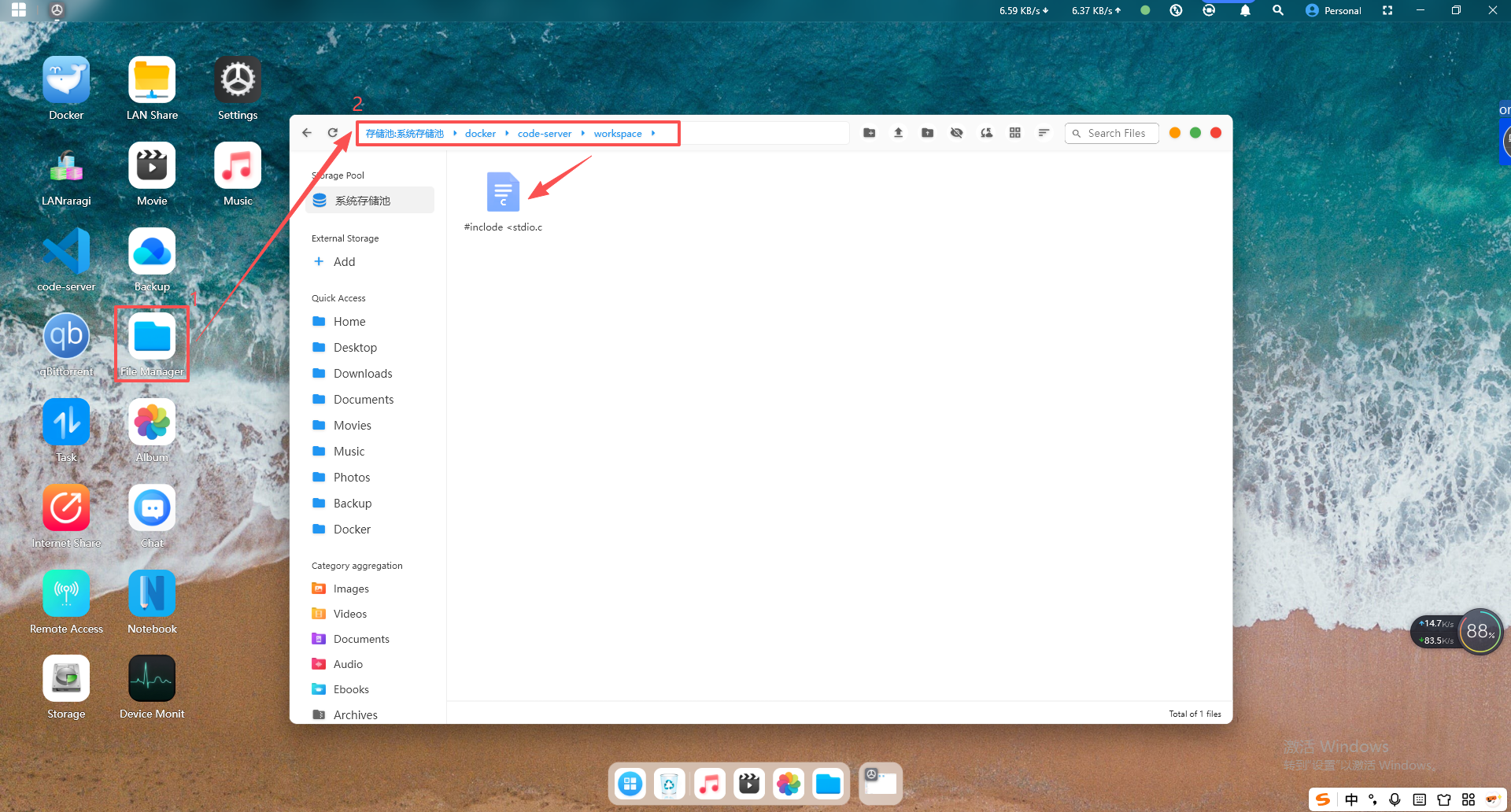
Go to the Cyber Cloud software, open File Management, and navigate in sequence: docker -> code-server -> workspaces directory, then find your saved file by its name and path.