


qBittorrent is an open-source, free, and powerful BitTorrent client that supports magnet links, torrent downloads, multi-task parallel downloading, bandwidth throttling, queue management, and more.
It not only meets users' needs for efficiently managing BT download tasks on NAS devices, but also offers cross-platform compatibility, supporting operating systems such as Windows and macOS.
Username: admin
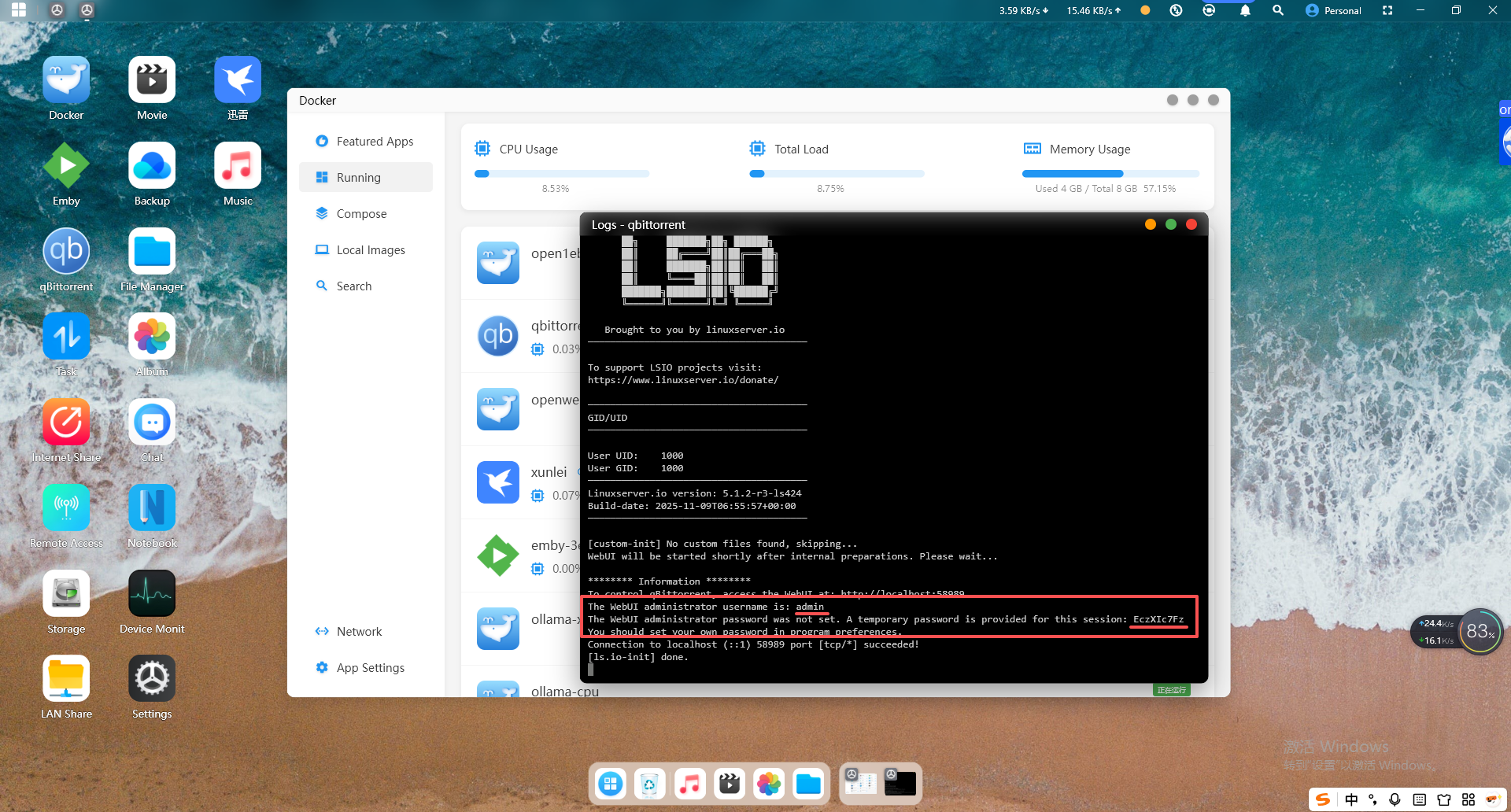
Temporary Password: Cyber Cloud Software > Docker > Running qBittorrent > Container Operations > Container Logs
Default Port
Web Access Port: 58989
Changing Login Credentials
You can use the temporary password for the first login. However, for security purposes, it is recommended to change the default username and password promptly after your initial login:
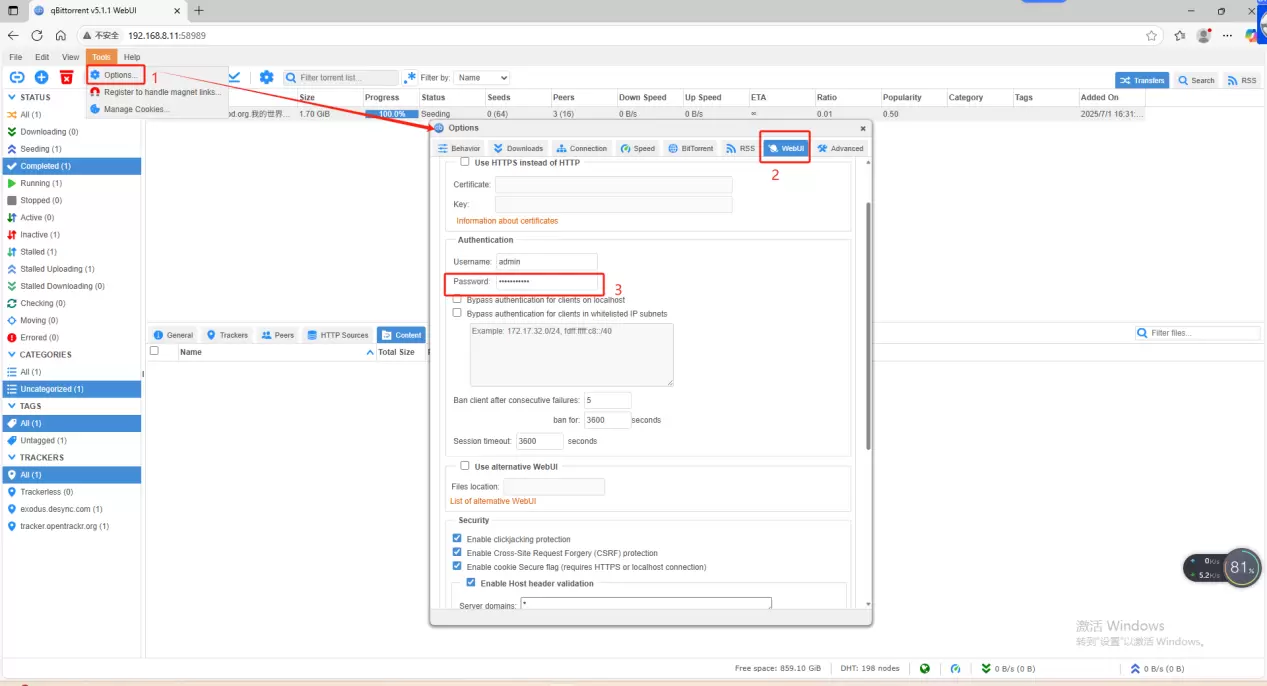
(1) Click the "Options" button in the upper-left corner to enter the settings page.
(2) Under the WebUI section, scroll down to find "Authentication", and set a new username and password.
(3) After making the changes, click "Save" at the bottom of the page.
You will need to use the new username and password to log in the next time.
Installation and User Guide
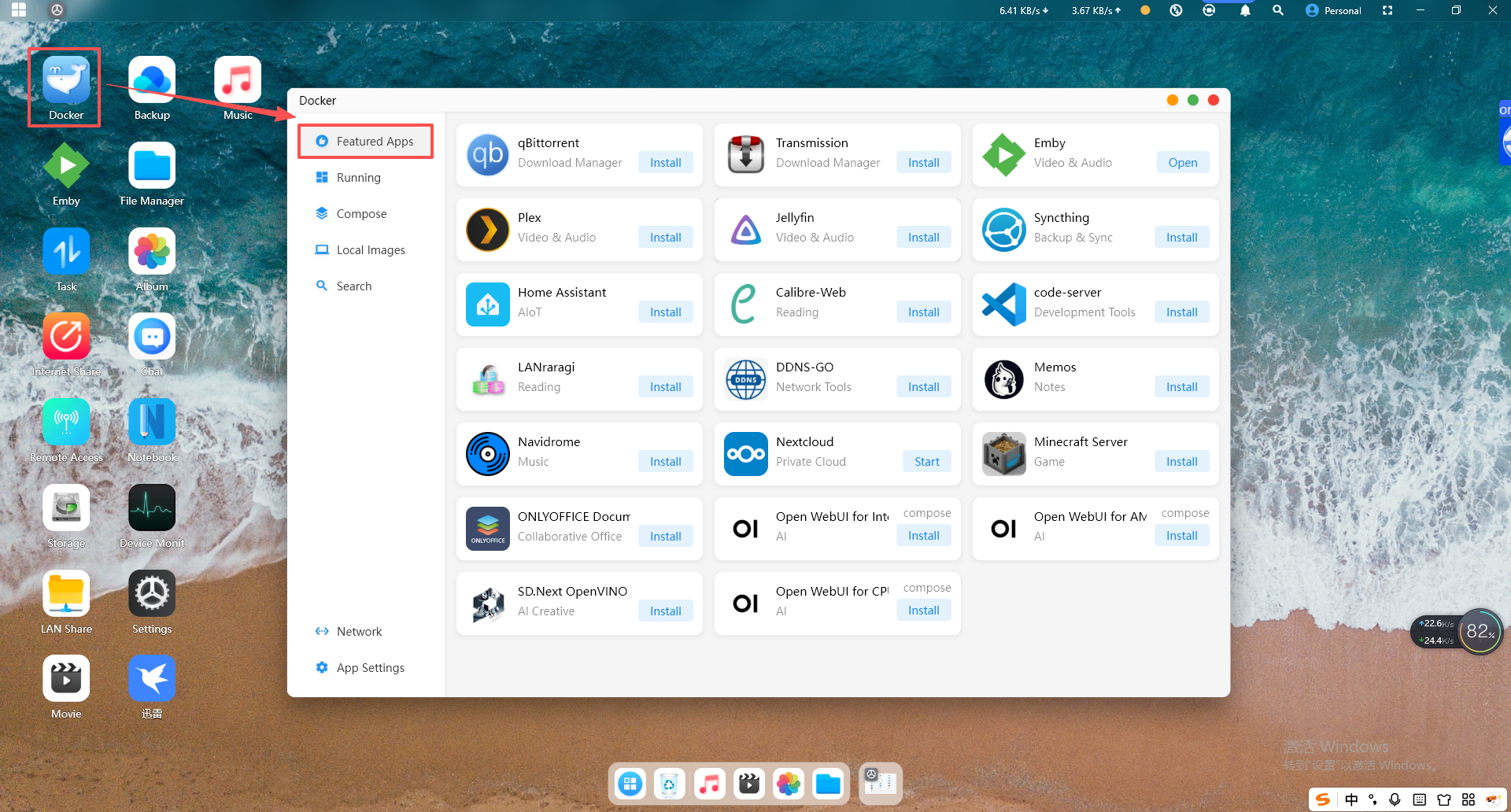
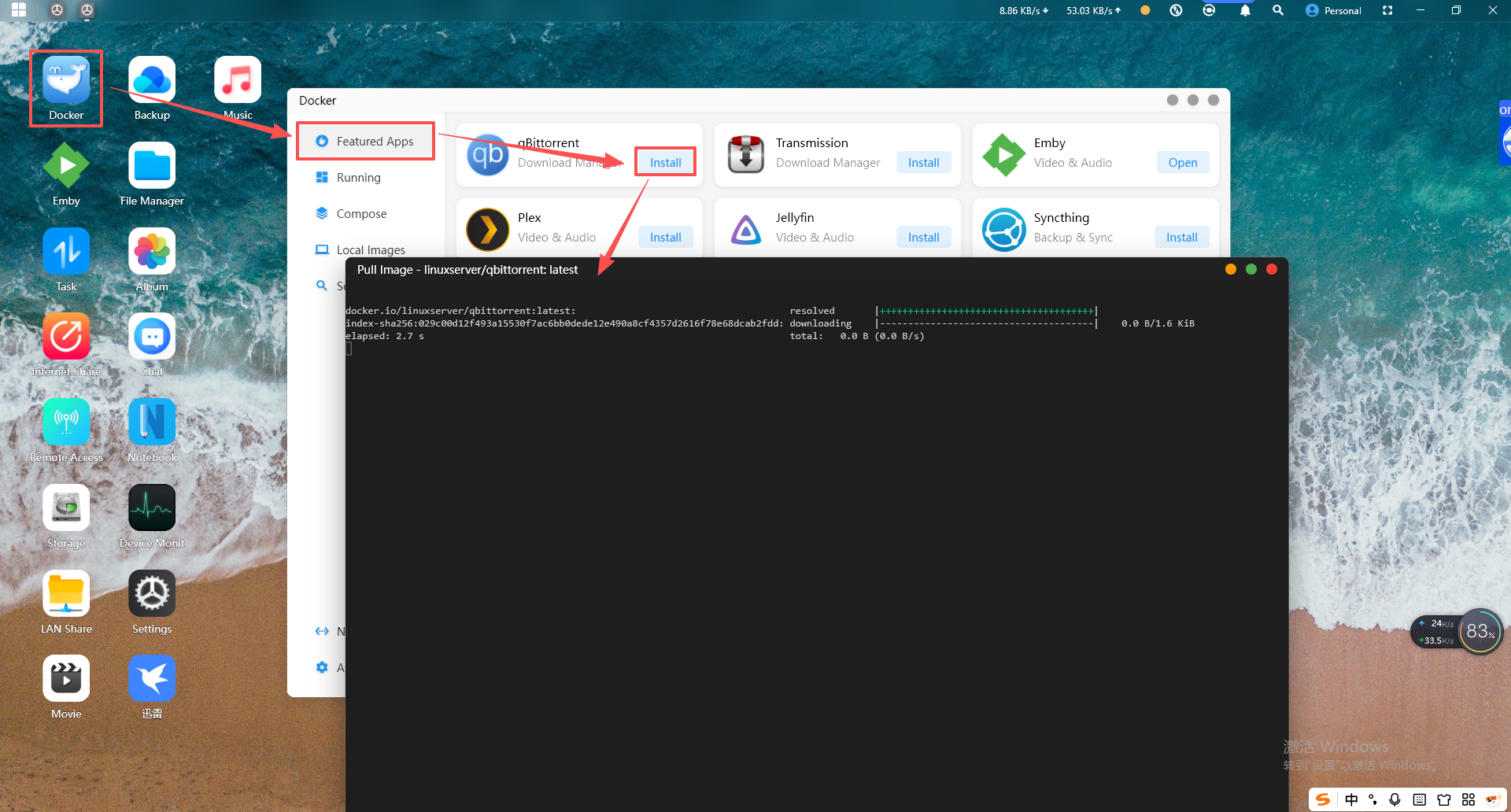
2.Find qBittorrent in the Featured Applications and click "Install". A page for pulling the image will pop up. After the image pull is complete, close the image pull page.
3.Click "Start". The container will then be launched, and the firewall ports will be automatically opened, while a desktop shortcut will also be created.
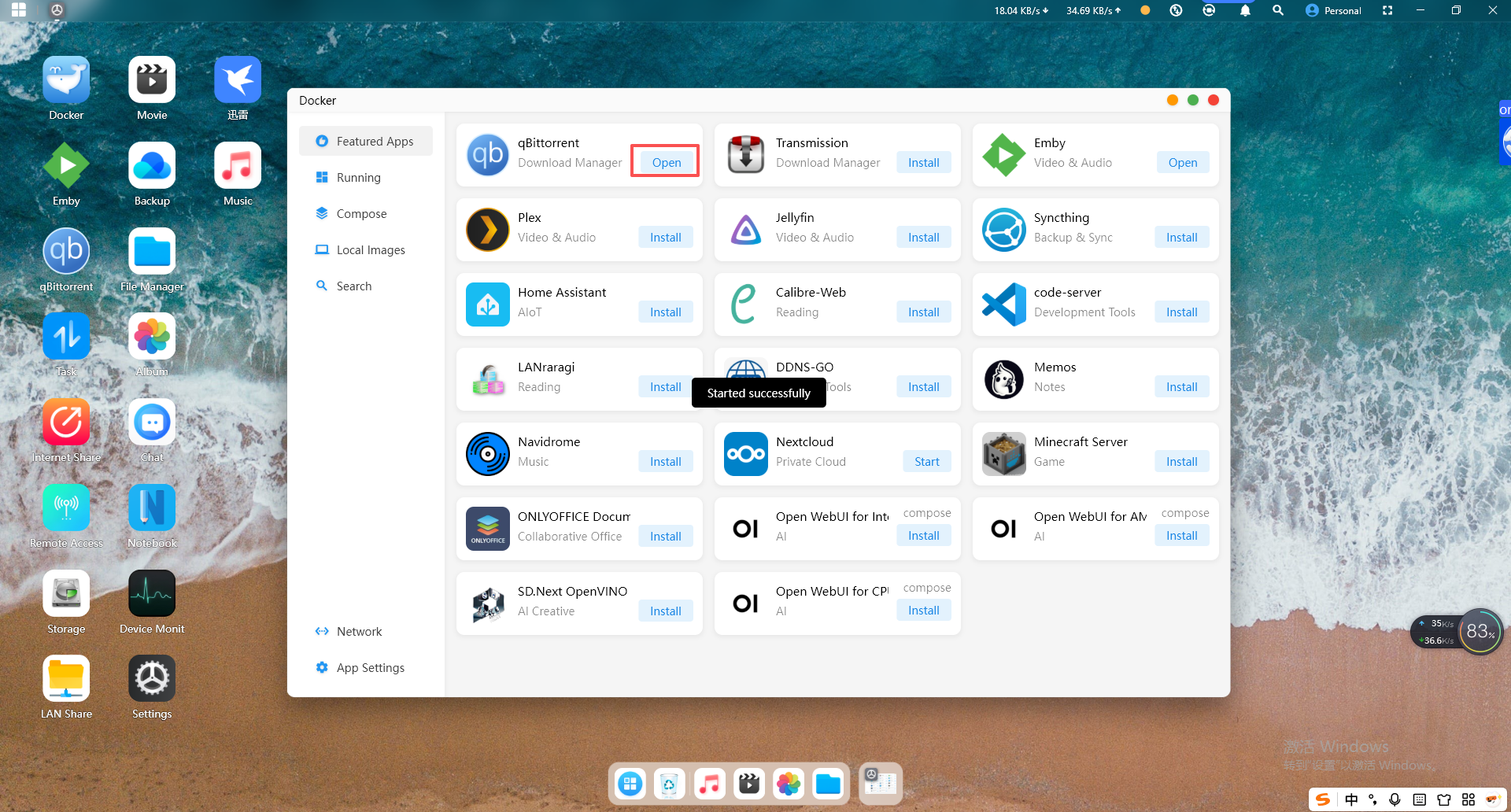
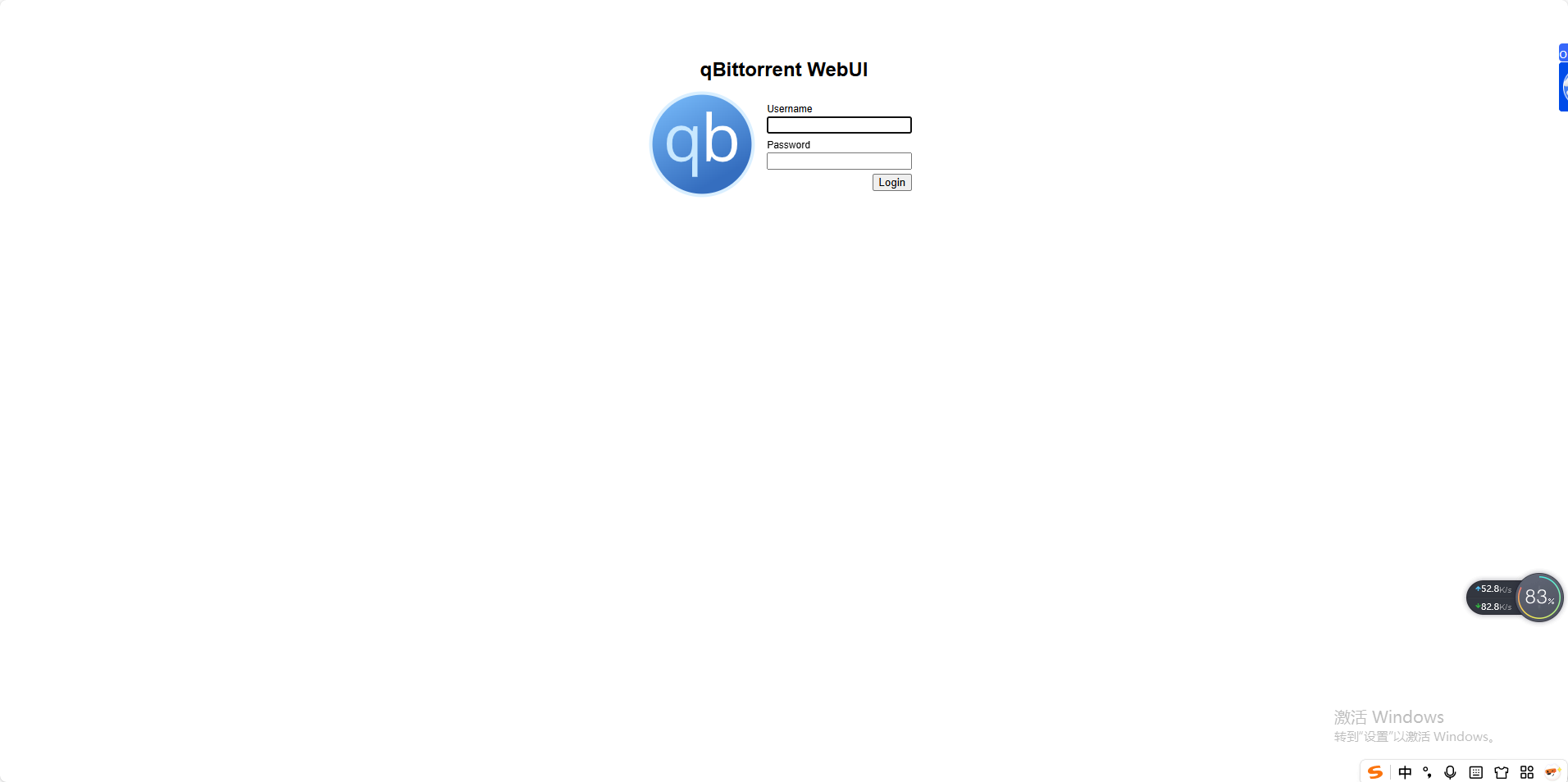
4.After a successful startup, click "Open" and the page will automatically redirect to the application interface. Enter your username and password to log in.
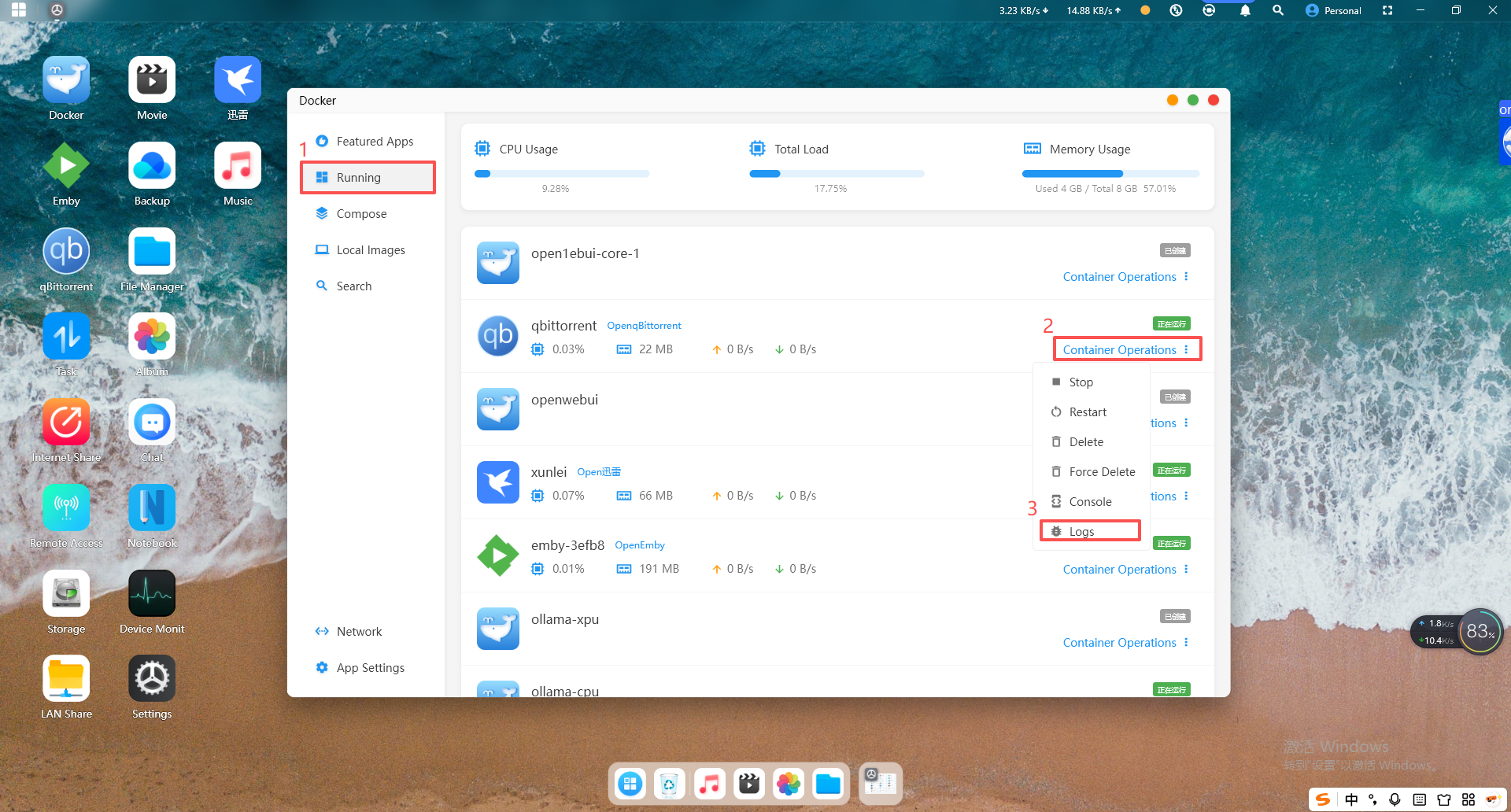
5.After the container has started successfully, click "Running" in the left navigation pane to view the container's status, resource usage, logs, and management options.
The default login username and temporary password can also be found in the container logs. For security purposes, it is recommended to change the default username and password promptly after the first login.
6.After successfully logging in with your username and password, you can add download tasks in multiple ways:
(1) Add Torrent Link... : Enter the magnet link in the pop-up dialog box and click "OK" to start downloading.
(2) Add Torrent File... : Select and upload a local torrent file, and the resource will begin downloading once completed.
(The following steps use the "Add Torrent Link" method as an example.)
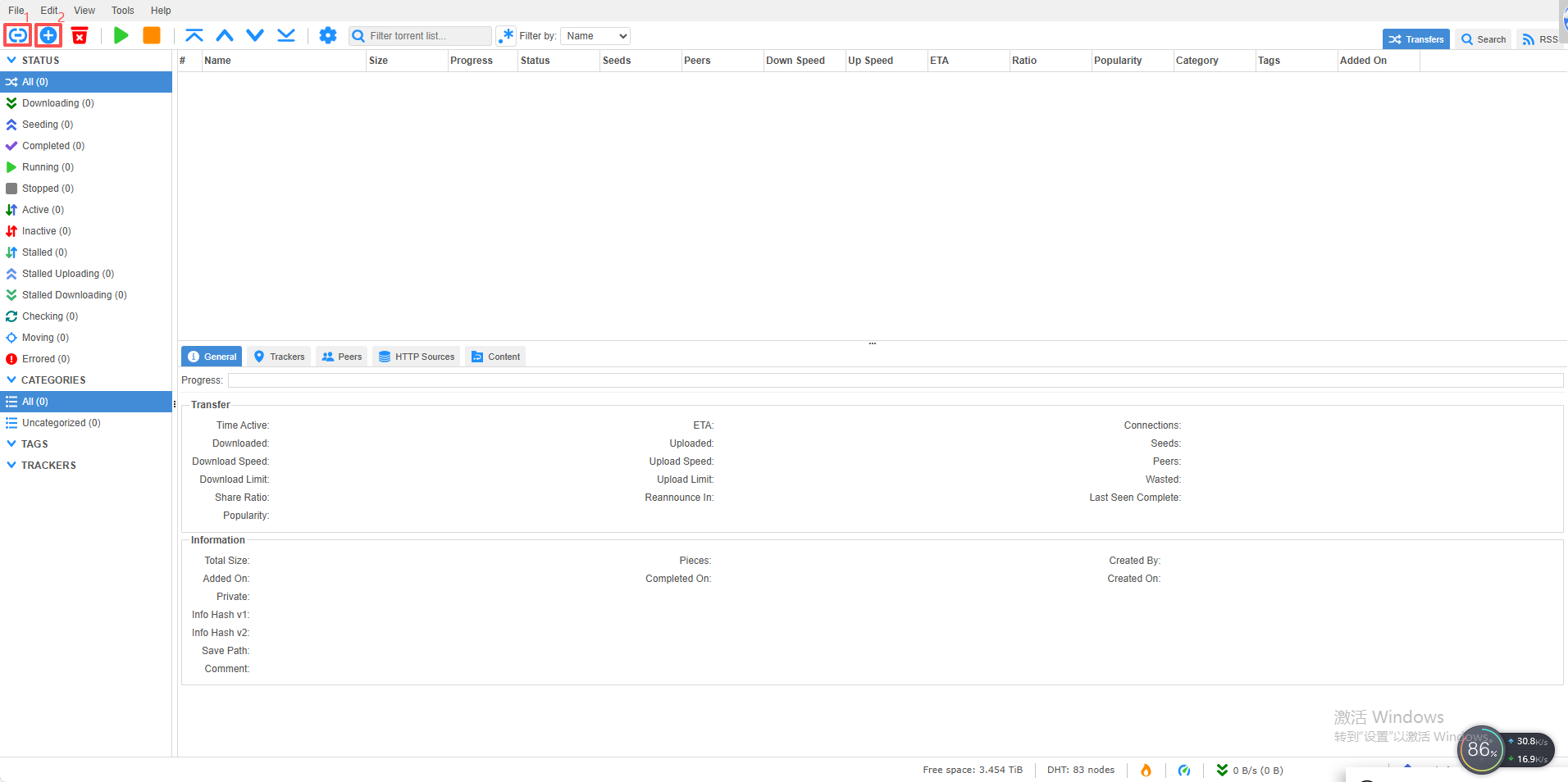
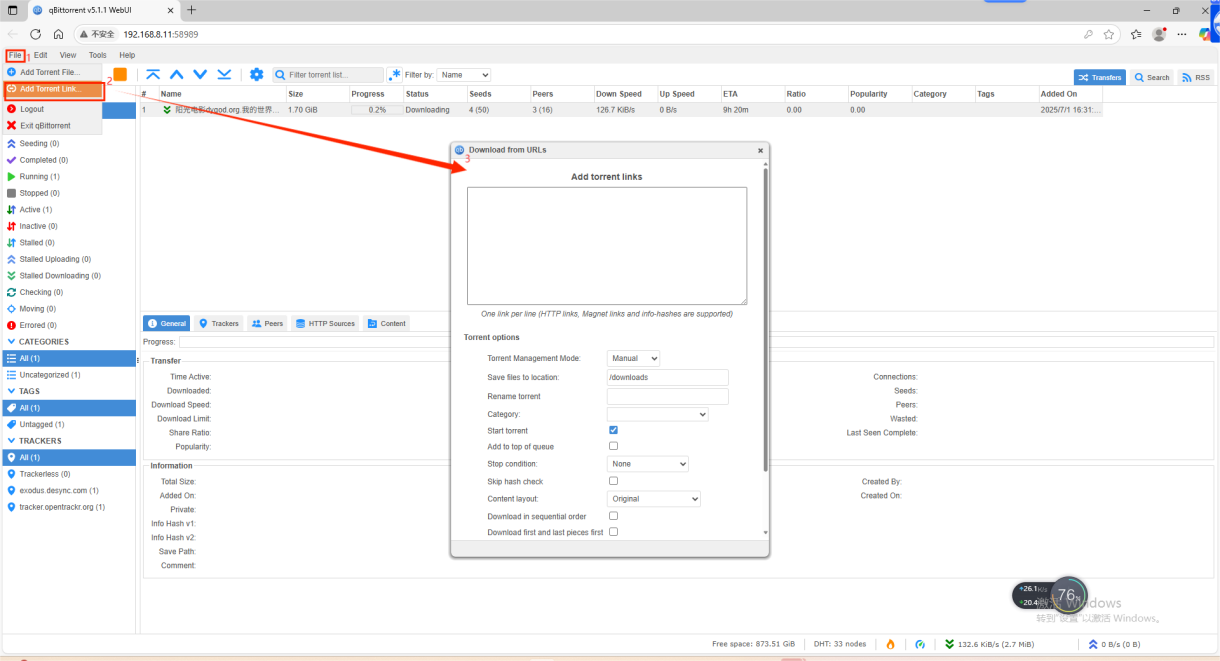
Select File -> Add Torrent Link... in the upper-left corner to enter the "Download from URLs" page. In the pop-up dialog box, enter or paste the magnet link, then click Download to start downloading.
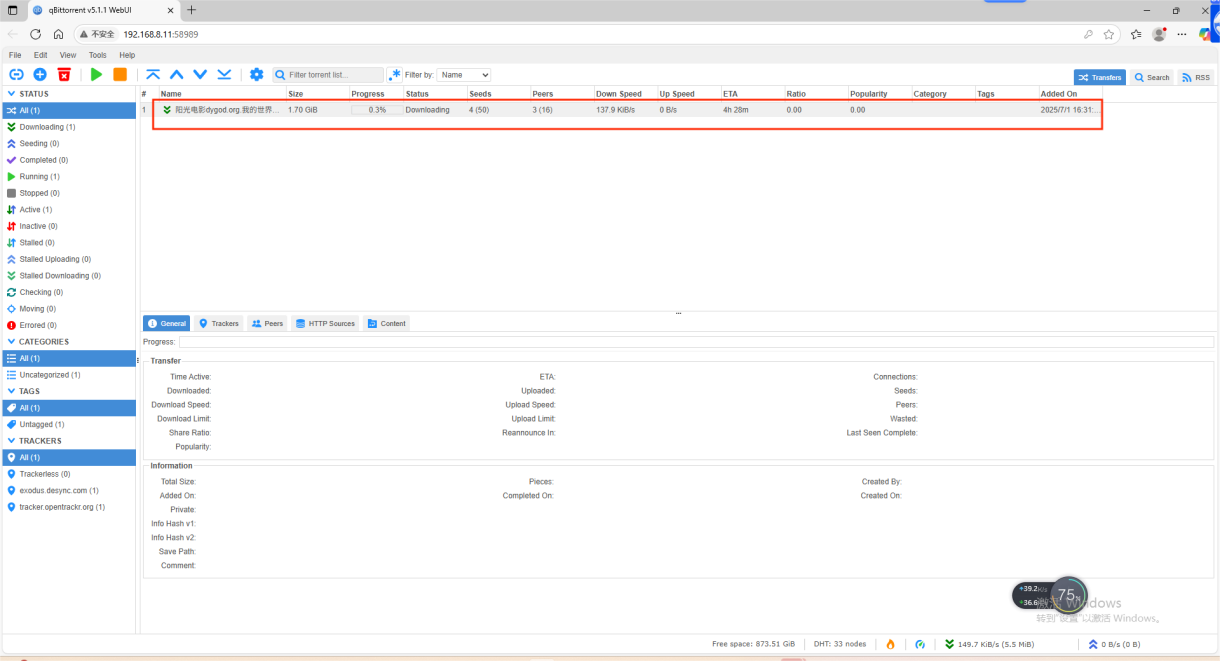
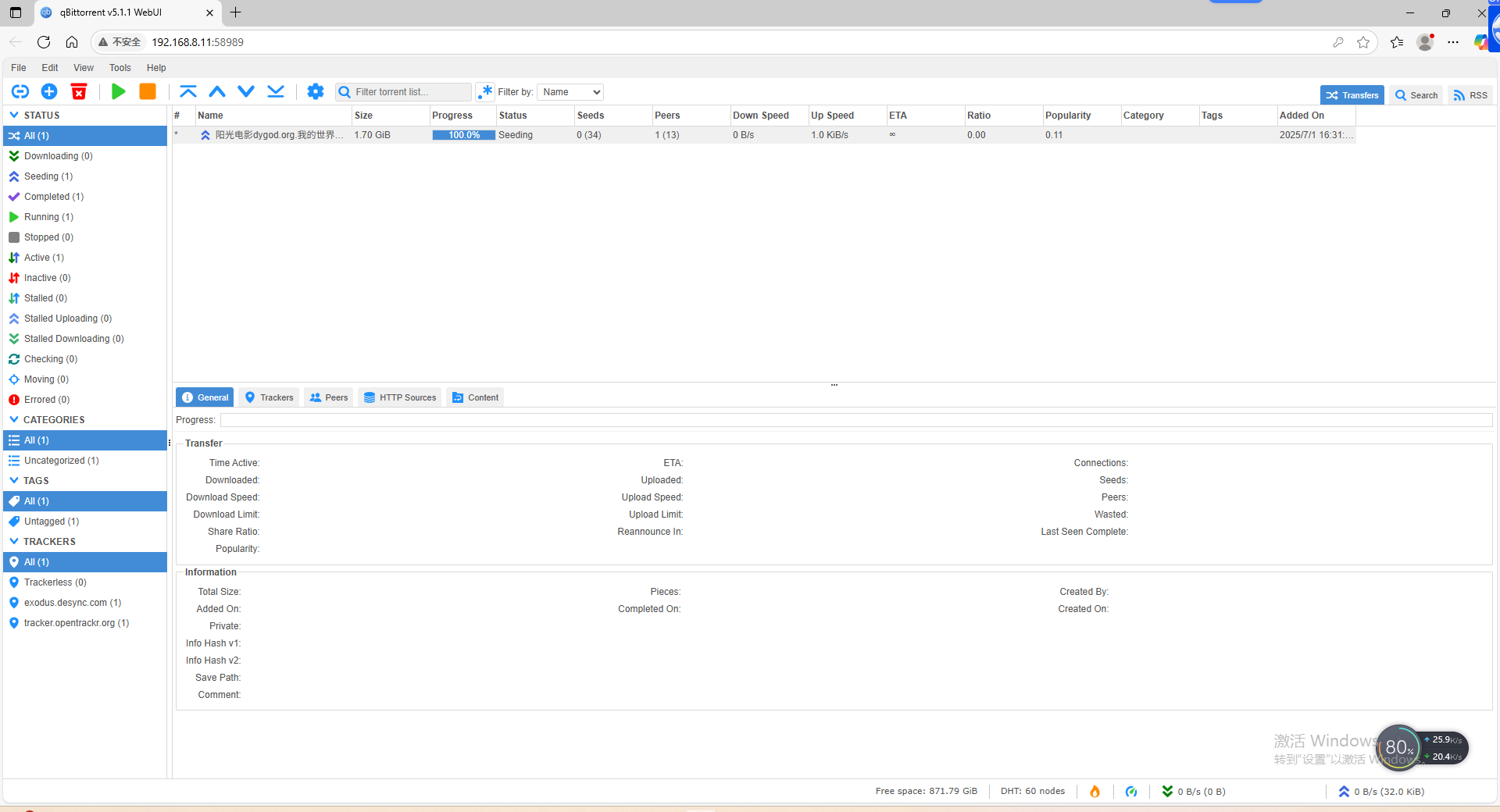
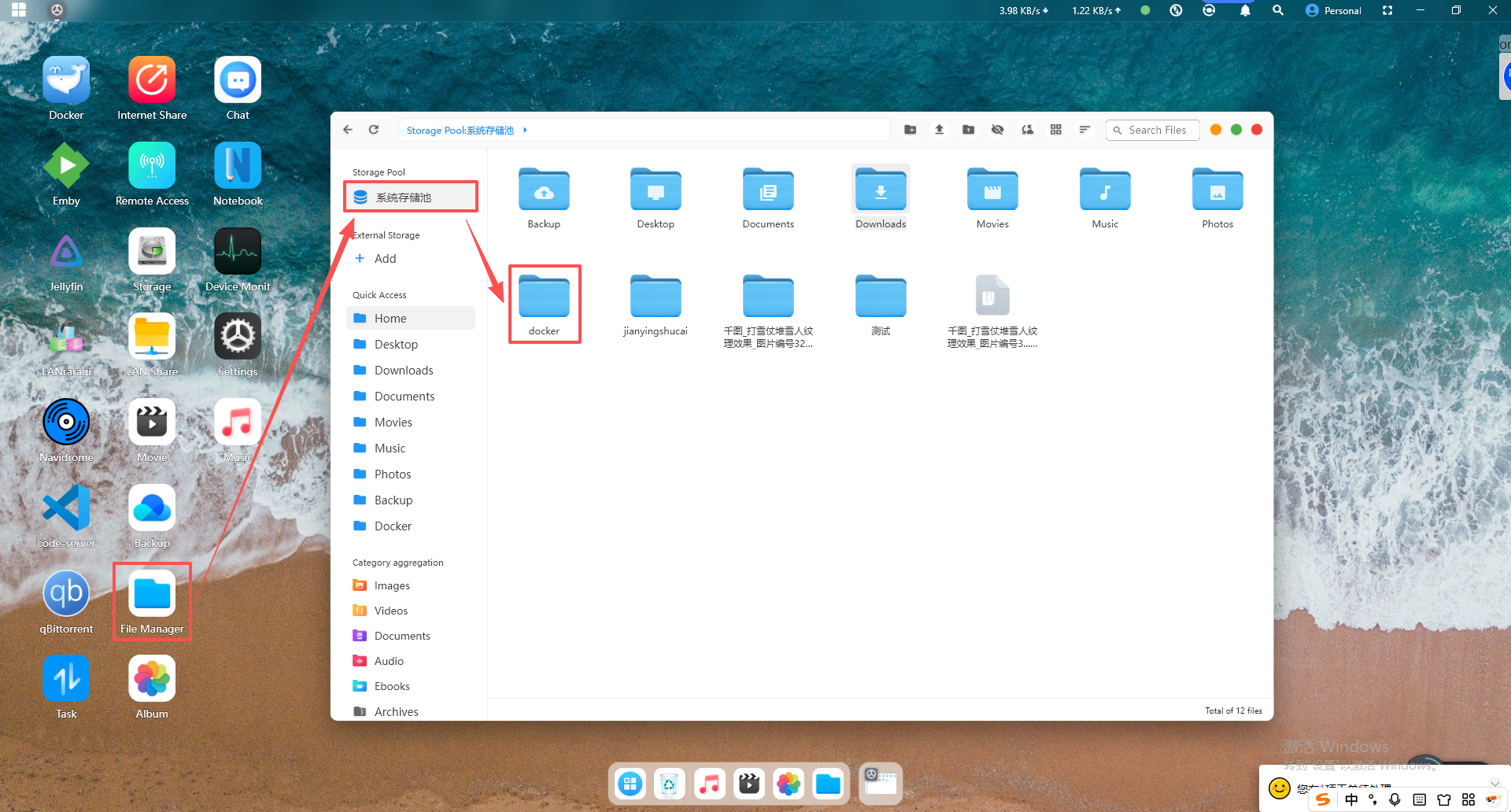
7.After the download task is completed, you can return to the NAS to view it. The specific steps are as follows:
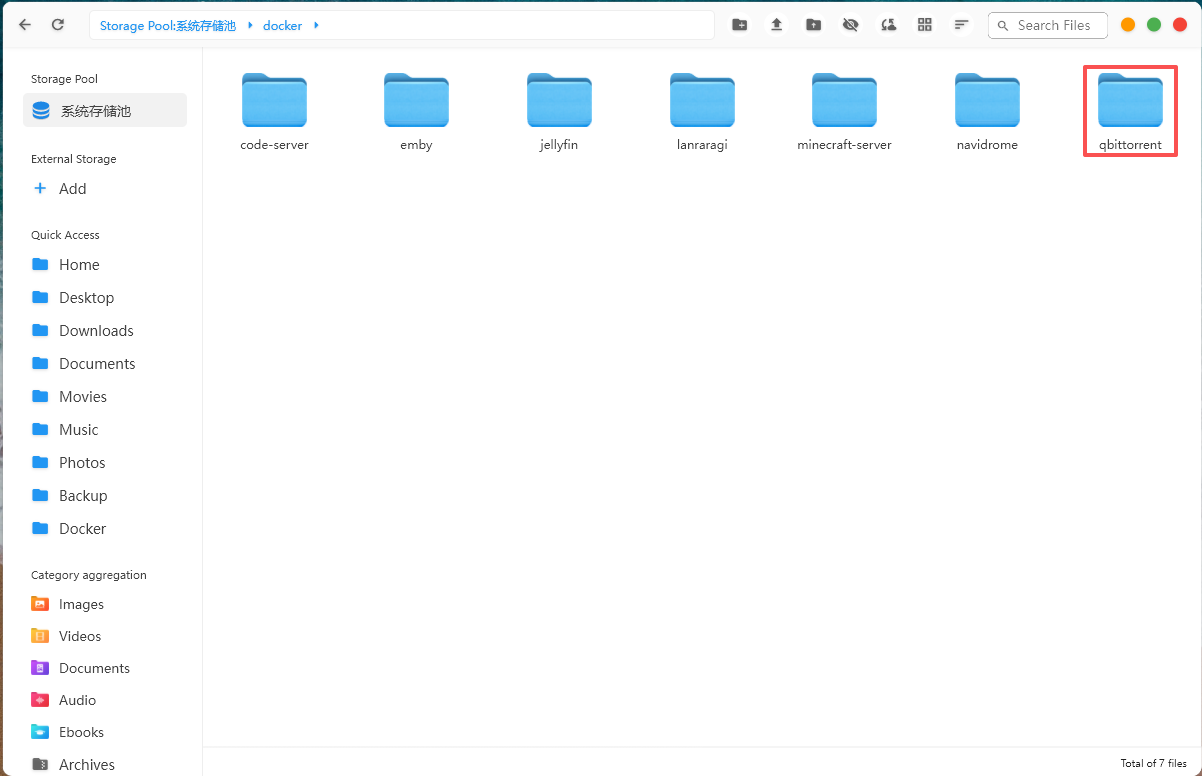
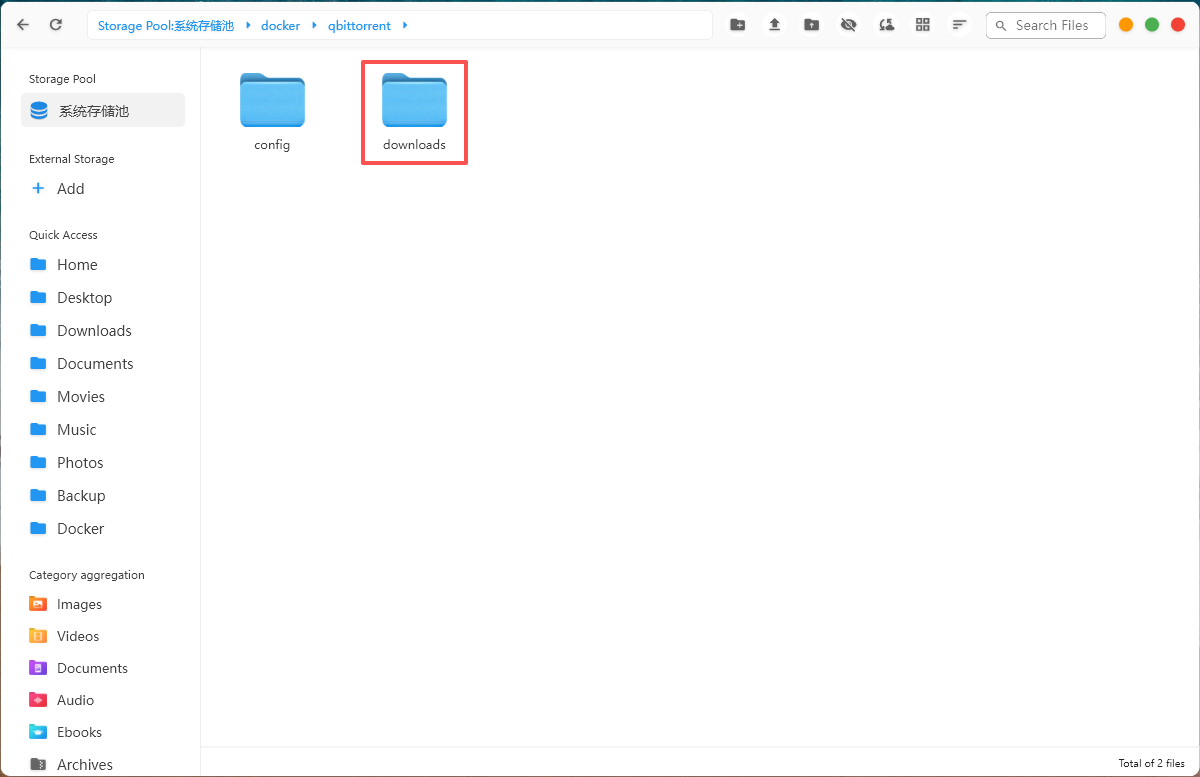
Why is there no download speed for torrents?
The essence of BT downloading is actually "downloading while uploading at the same time".
When we use BT download software to download resources, the resources we receive are actually uploaded to us by other BT users. The download speed depends on the upload speed of other BT users under the same resource. The more people using BT, the more uploading there is, and the more uploading there is, the faster the download speed will be!
Download speed depends on multiple factors, including seed quality, the number of peers, ISP restrictions, and more. It is recommended to choose high-quality seeds.